
Installation
odio turns a Raspberry Pi (or any Debian-based system) into a complete audio streamer: Bluetooth speaker, AirPlay 2, Spotify Connect, UPnP/DLNA, multi-room, CD player, USB playback — all running in your user session on standard Debian-based systems.
Why odio?
Section titled “Why odio?”odio started as a personal setup in 2020 — a Raspberry Pi wired to a stereo amplifier, replacing a pile of dedicated devices with a single board. After years of daily use and iteration, odio packages that setup for anyone to use. Every component is independent and can be set up from scratch individually.
The full journey that led to odio is documented on Medium.
Compatible hardware
Section titled “Compatible hardware”| Hardware | Architecture | Install method | Tested on |
|---|---|---|---|
| Raspberry Pi B, B+ | armv6l | Flash, curl | Raspberry Pi OS Lite (Trixie) |
| Raspberry Pi Zero W | armv6l | Flash, curl | — |
| Raspberry Pi 2 | armv7 | Flash, curl | — |
| Raspberry Pi 3B+ | armv7 / arm64 | Flash, curl | Raspberry Pi OS Lite (Trixie) |
| Raspberry Pi 4, 5 | arm64 | Flash, curl | — |
| Raspberry Pi Zero 2 W | arm64 | Flash, curl | — |
| Desktop | x86-64 | curl | Debian 13 Gnome |
| NAS | x86-64 | curl | OpenMediaVault 8 |
odio is still in beta — stable for daily use, but expect rough edges.
Getting started
Section titled “Getting started”Two paths, same result:
-
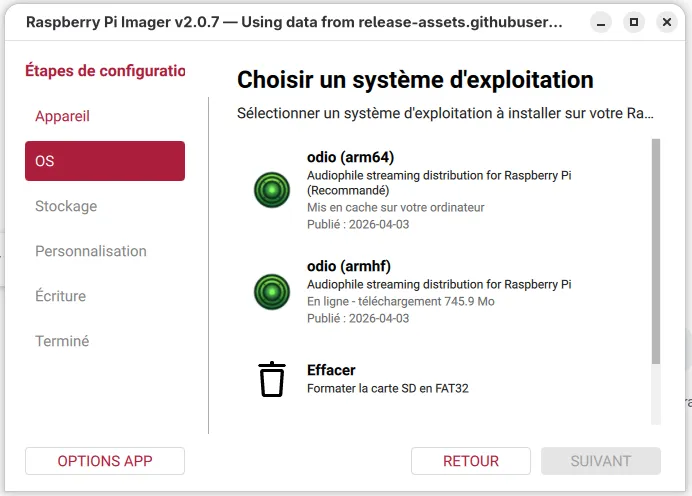
Flash an image — use Raspberry Pi Imager:
- Open Imager → Options App → Content Repository → Use custom URL
- Enter:
https://beta.odio.love/odio.rpi-imager-manifest - Select odio (available in armhf 32-bit and arm64 64-bit)
- Configure hostname, SSH (& WiFi if needed) in Imager settings, then flash
Ethernet is recommended over WiFi for reliable audio streaming.
Your Pi boots ready.
-
Run the installer — on an existing Debian 13 (trixie) or Ubuntu system:
Terminal window curl -fsSL https://beta.odio.love/install | bashThe installer runs pre-flight checks (OS, architecture, disk space, dependencies), then prompts you to choose a target user (default:
odio) and which optional components to install (AirPlay, Spotify Connect, Snapcast, DLNA, CD/USB autoplay). It downloads a vendored Ansible archive, runs the playbook, and configures everything. Existing config files are backed up before modification.The installer is idempotent, safe to re-run to update or repair.
For non-interactive installs (CI, automation), all prompts can be bypassed via environment variables — see the installer documentation.
Example installer output
╔═══════════════════════════════════════════════════════════╗║ odio Streamer Installer ║╚═══════════════════════════════════════════════════════════╝Running pre-flight checks...✓ OS: debian 13✓ Architecture: x86_64✓ Python 3.13✓ Sudo access available✓ Disk space: 7994 MB available in /tmp✓ curl available✓ Systemd availableInstalling python3-jinja2...✓ python3-jinja2 installedDownloading odio archive...✓ Archive extractedRunning Ansible playbook...PLAY [Odio Streamer Installation] **********************************************...═══════════════════════════════════════════════════Audio Streaming System - Installation Complete═══════════════════════════════════════════════════Hostname: raspodioUser: odioCore services installed:✓ PulseAudio with network streaming✓ Bluetooth audio (A2DP sink)✓ MPD (Music Player Daemon)✓ Odio API (REST control interface)Optional services:✓ MPD disc player✓ Spotifyd (Spotify Connect)✓ Shairport Sync (AirPlay)✓ Snapcast client✓ UPnP/DLNA rendererSystem should already be running !Visit http://localhost:8018/ui═══════════════════════════════════════════════════Playbook completed in 2m 20s═══════════════════════════════════════════════════════════Installation complete!═══════════════════════════════════════════════════════════
Both paths produce the same stack: same packages, same services, same configuration.
DAC and overclocking
Section titled “DAC and overclocking”If you use an external DAC (e.g. HiFiBerry DAC+ Standard), edit /boot/firmware/config.txt:
Adjust the dtoverlay line to match your DAC — see your DAC manufacturer’s documentation.
# Enable your DAC overlaydtoverlay=hifiberry-dacplus-std
# Disable the onboard audio#dtparam=audio=on
# Overclock (useful on older armhf boards like Pi B+ at 700MHz)arm_boost=1arm_freq=800
What you get
Section titled “What you get”Once installed, your odio node is controllable from:
- Embedded web UI — built into the API, accessible from any browser on your network.
- odio application — web app installable from your browser, manage all your nodes from one place.
- Home Assistant — native integration via HACS. Every feature exposed as HA entities.
- Any MPD client — for library browsing and playback control.
- The REST API — for automation, scripting, or building your own client.
For a deeper look at how the stack is put together, see How it works.