
How to use your odio Pi as a Bluetooth speaker
Your odio node works like a commercial Bluetooth speaker via BlueZ. Pair your phone, play music, control everything from the odio UI or Home Assistant.
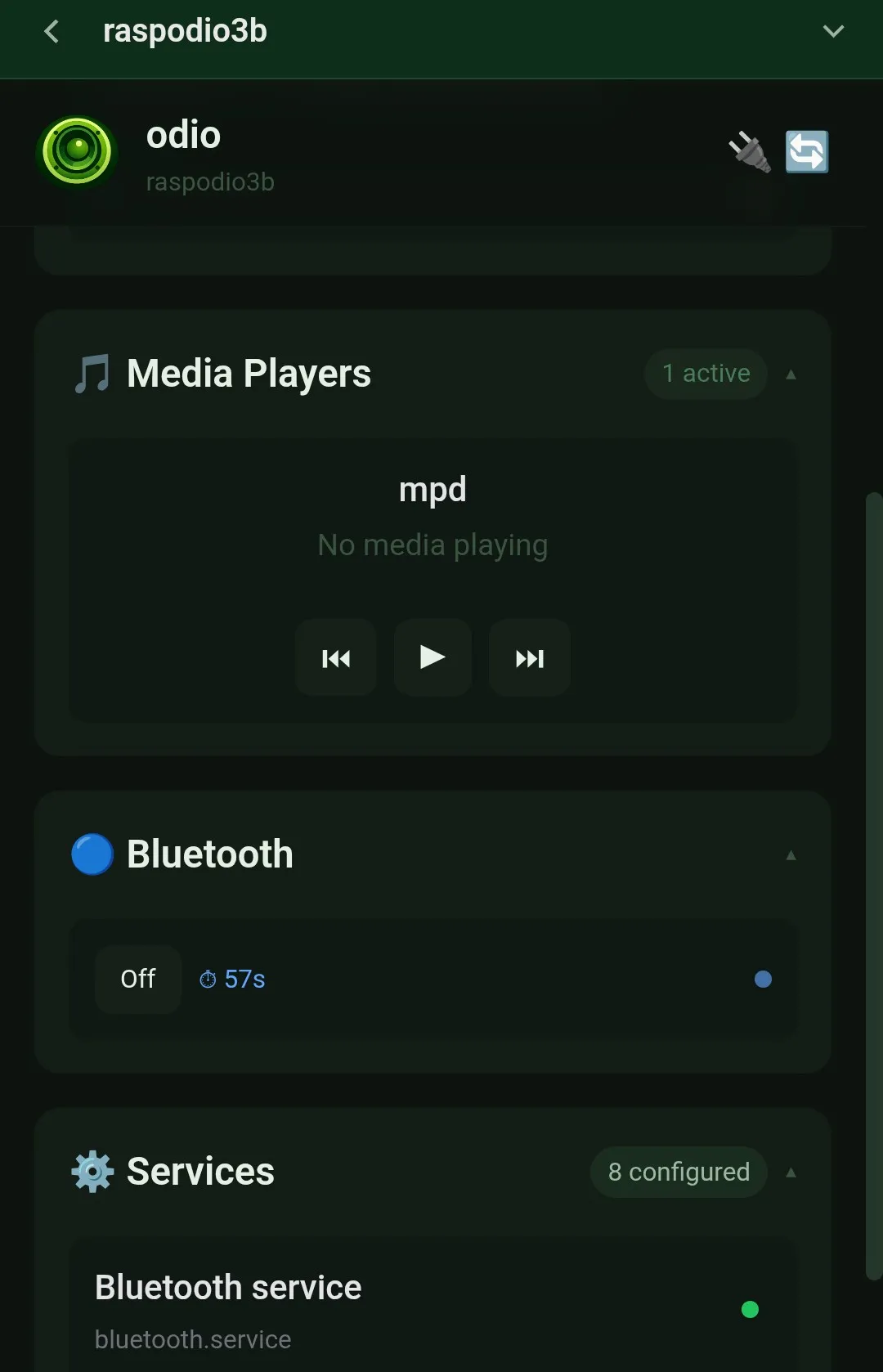
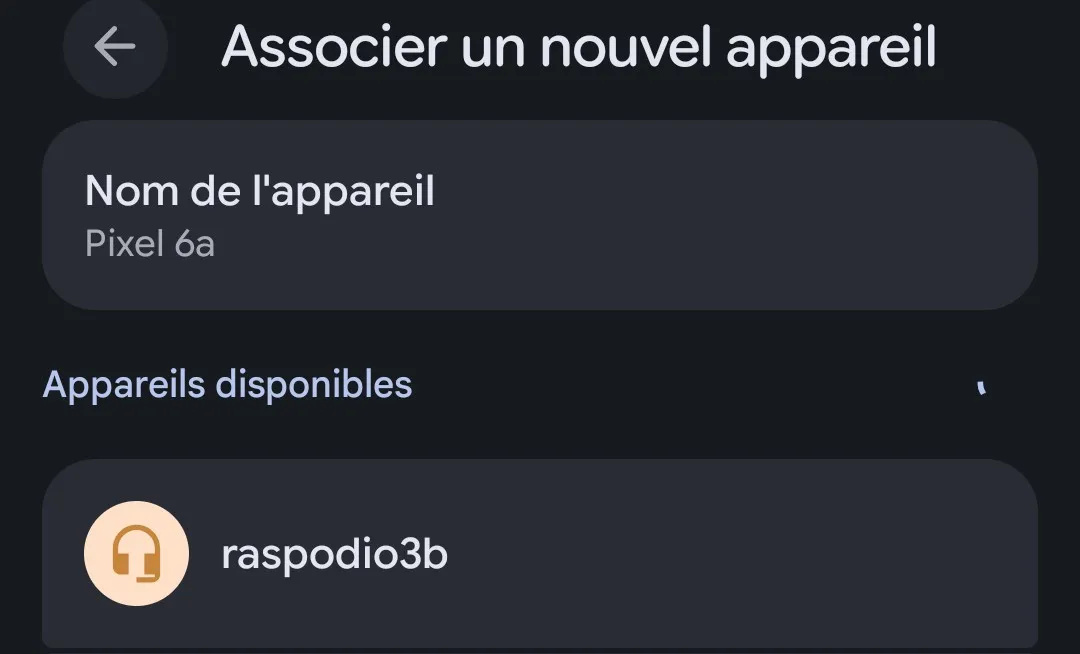
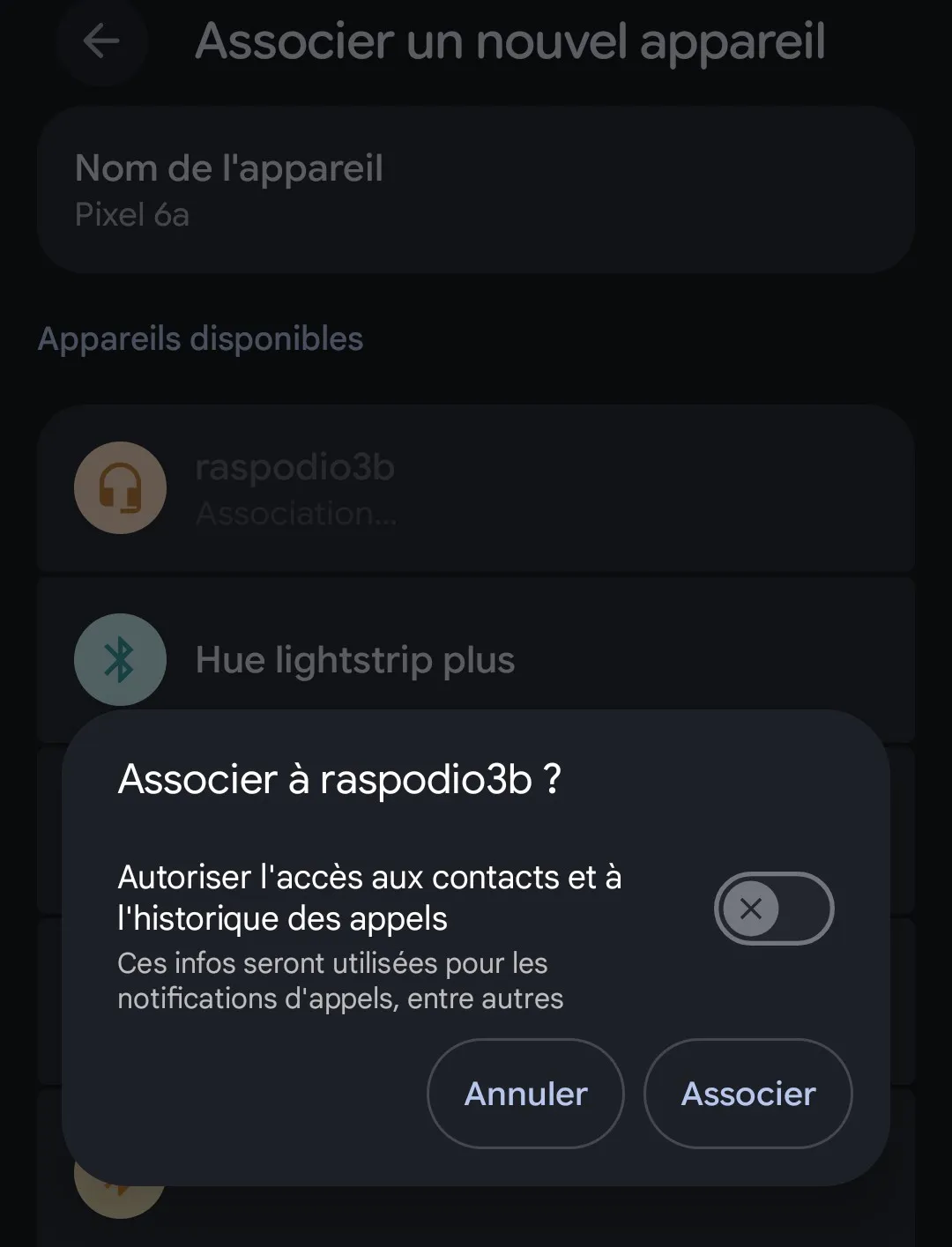
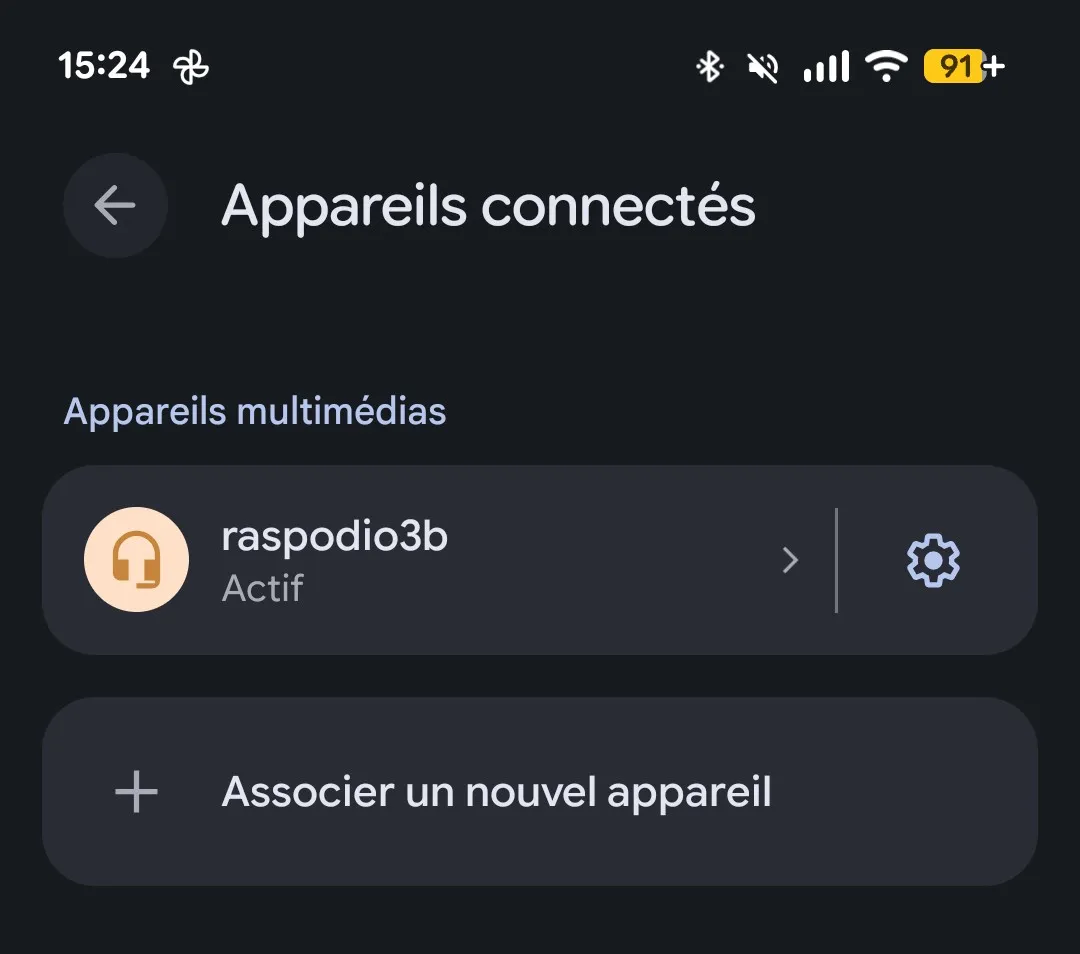
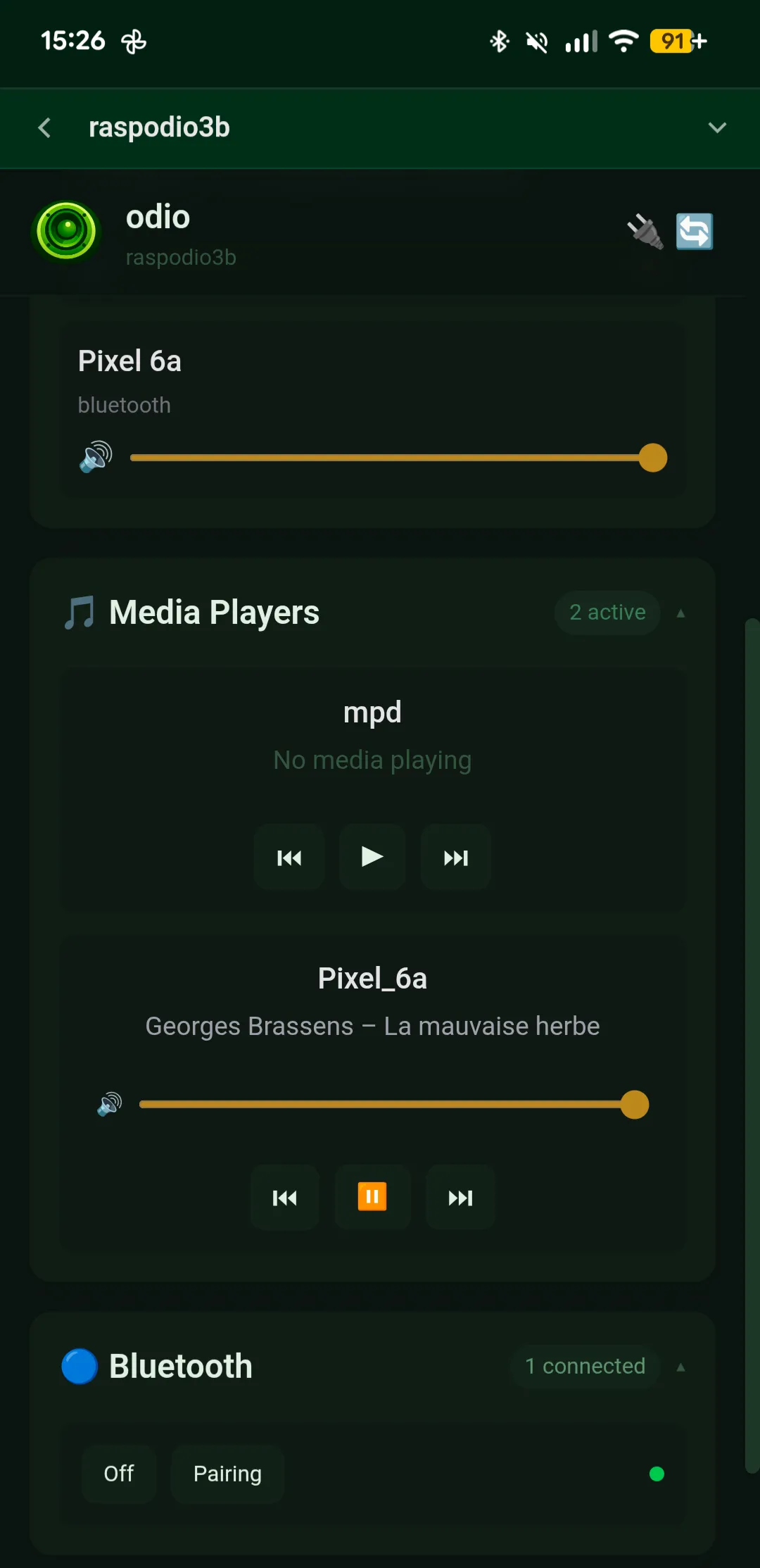
First pairing
Section titled “First pairing”- Tap Pairing from the embedded UI, the application, or Home Assistant — this powers on Bluetooth automatically if needed and makes the node discoverable until a device connects or the timeout expires (60 seconds by default).
- On your phone, go to Bluetooth settings — your odio node appears with a headphone icon.
- Tap the odio node. Your phone asks to confirm the pairing — accept it.
- That’s it. The device is automatically trusted for future connections. No PIN, no confirmation on the Pi.
Reconnecting
Section titled “Reconnecting”Once paired, your phone remembers the odio node. To reconnect:
- Power on Bluetooth on the odio node.
- Your phone reconnects automatically if odio was the last paired speaker.
If your phone doesn’t reconnect on its own, just select the odio node from your phone’s Bluetooth settings — no need to enter pairing mode again.
Playback controls
Section titled “Playback controls”Once connected, your phone streams audio to the Pi over A2DP. The connected device appears as a media player in the embedded UI and Home Assistant with:
- Track info (artist, title, album) via AVRCP/MPRIS
- Play / pause / next / previous
- Bidirectional volume sync — change volume on your phone or in the UI
This works with any app on your phone: Spotify, YouTube, Apple Music, podcasts, anything.
Power management
Section titled “Power management”Bluetooth can be powered on and off from the API, the application, or Home Assistant. If no device is connected for a configurable period, the adapter auto-powers down to save energy. To have Bluetooth on as soon as odio starts, enable powerOnStart.
Configuration
Section titled “Configuration”The Bluetooth device name shown during pairing and the full BlueZ setup (device class, group membership, mpris-proxy) are documented in API Configuration — Bluetooth. The installer configures this automatically — edit /etc/bluetooth/main.conf if you want to change the advertised name.
Going the other way
Section titled “Going the other way”Want your odio node to play through a Bluetooth speaker instead of receiving from a phone? See Bluetooth output.