How to play internet radio stations on odio
odio plays internet radio out of the box. The most polished entry point is myMPD’s built-in WebradioDB browser on the odio node itself; the upmpdcli backend also exposes a few built-in station sources in the UPnP/DLNA library for any control point, and Home Assistant or a remote MPD work too.
Via myMPD on the odio node
Section titled “Via myMPD on the odio node”myMPD is the web UI bundled with odio since 2026.4.2b2, reachable at http://<ip>:8080 on the odio node and pointed at the local MPD. See MPD → myMPD web UI for install details and the rest of its use cases.
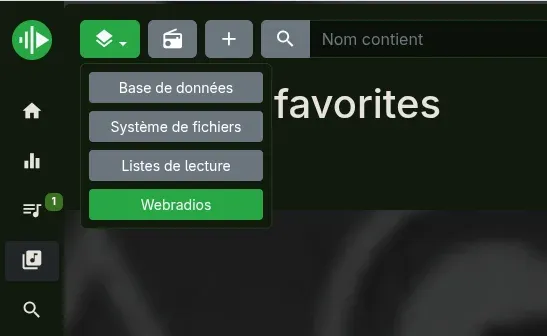
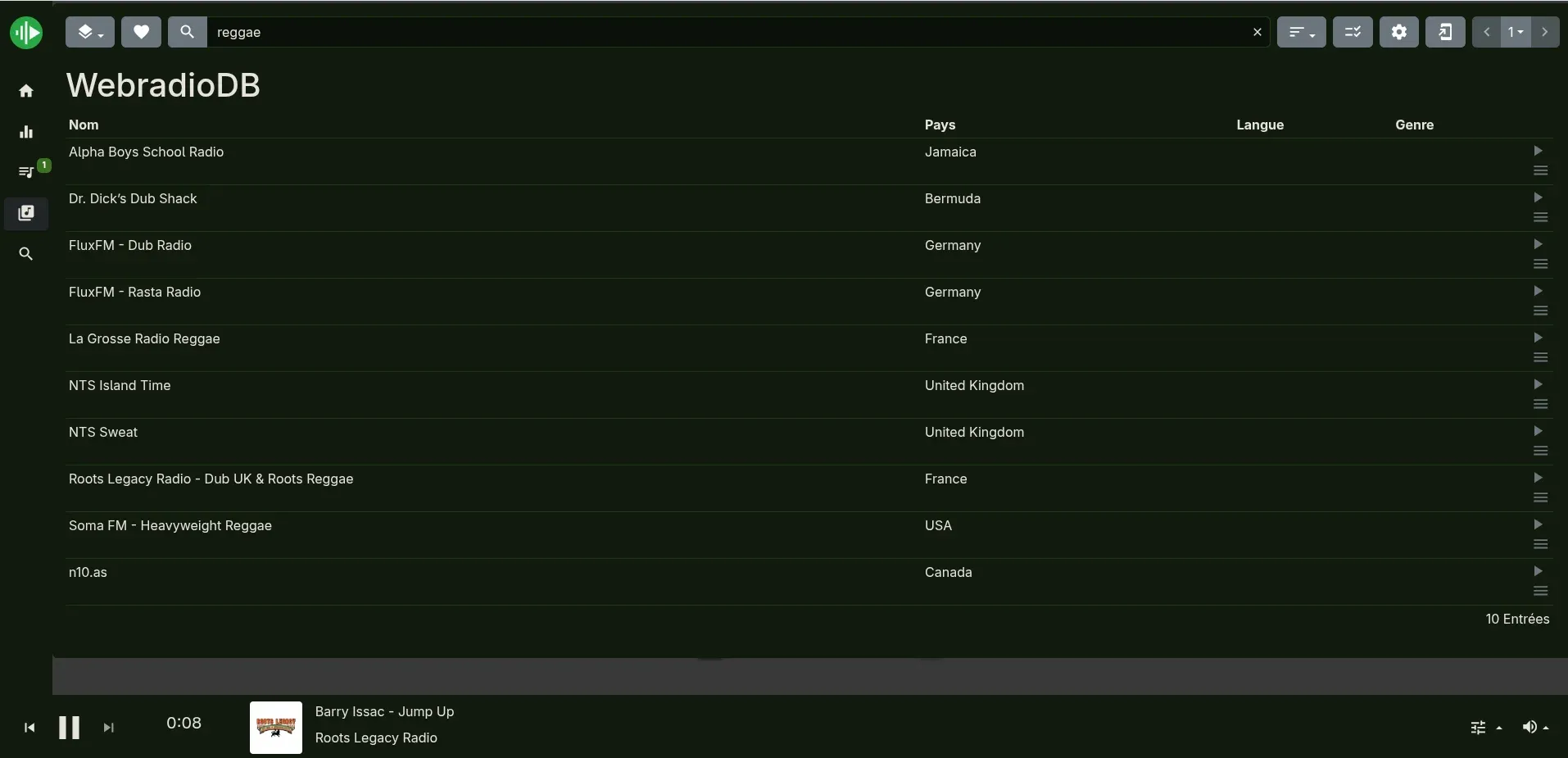
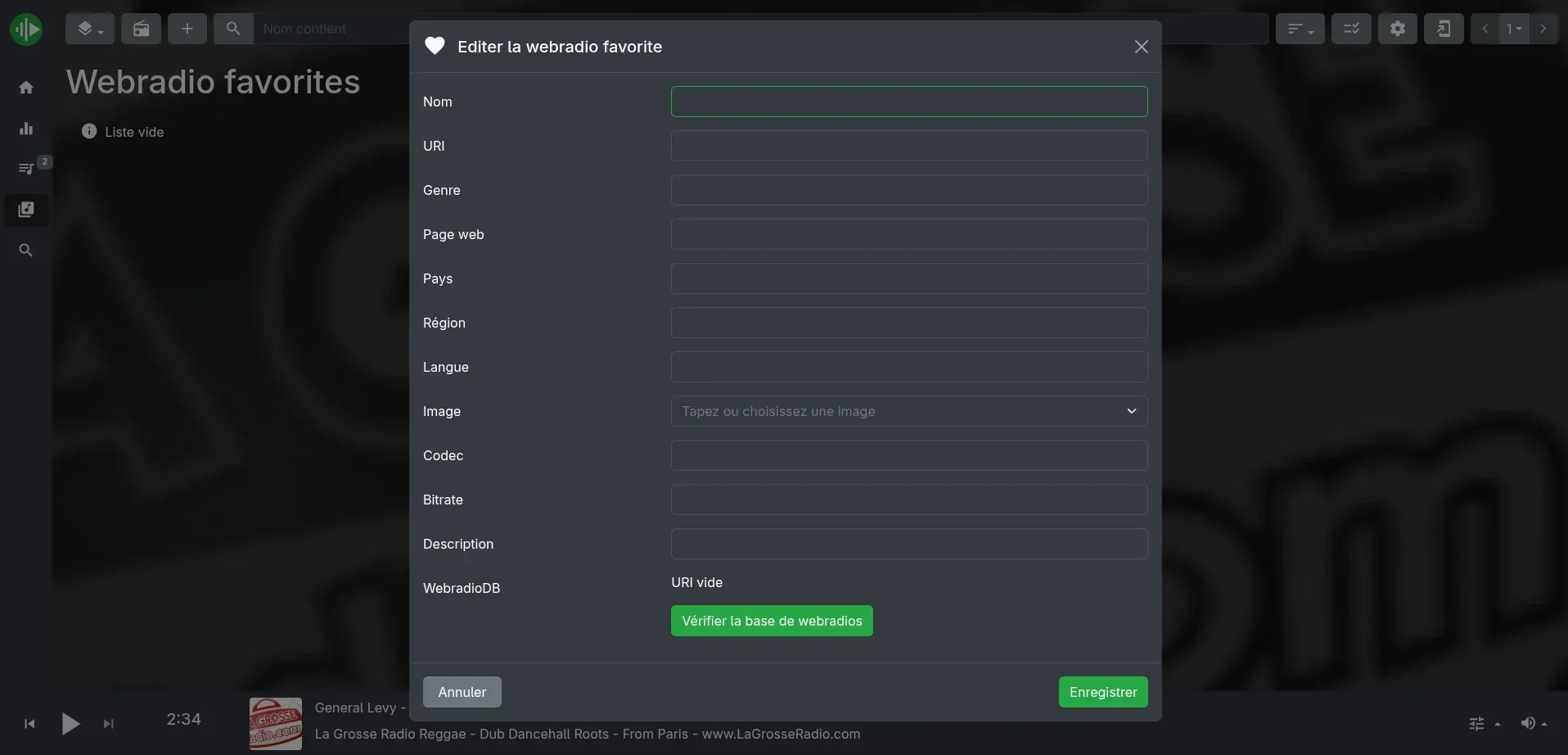
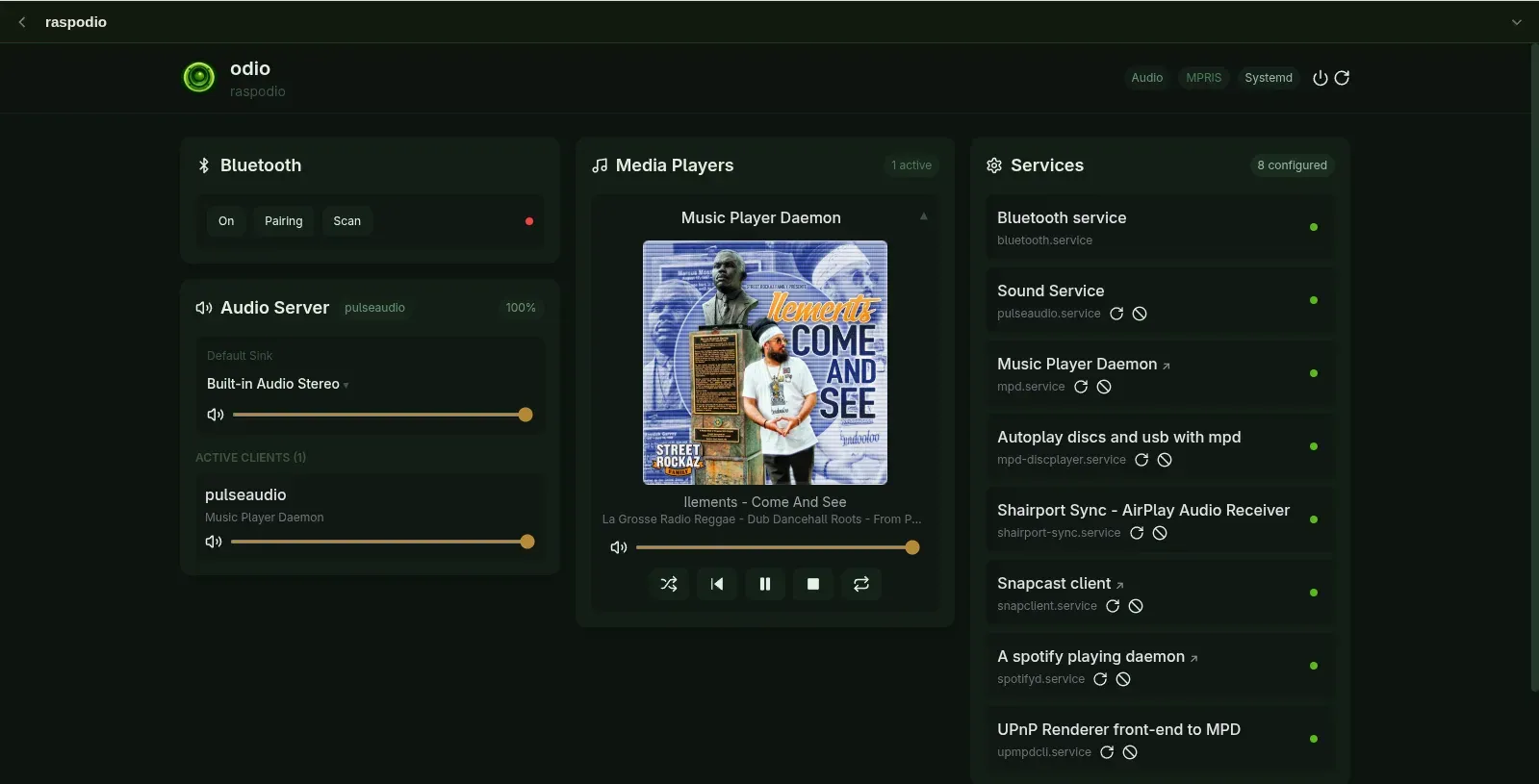
myMPD integrates webradiodb natively for browsing, searching, and adding stations to favorites — a much better webradio experience than the raw-playlist approach below. Stations not in WebradioDB can be added by URL directly from the favorites editor, with name, genre, country, codec and the rest of the metadata fields. mympd.service is wired into odio-api’s systemd watch list, so the stream shows up as the active MPD media player in the embedded UI like any other MPD playback, with transport controls and the current stream title.
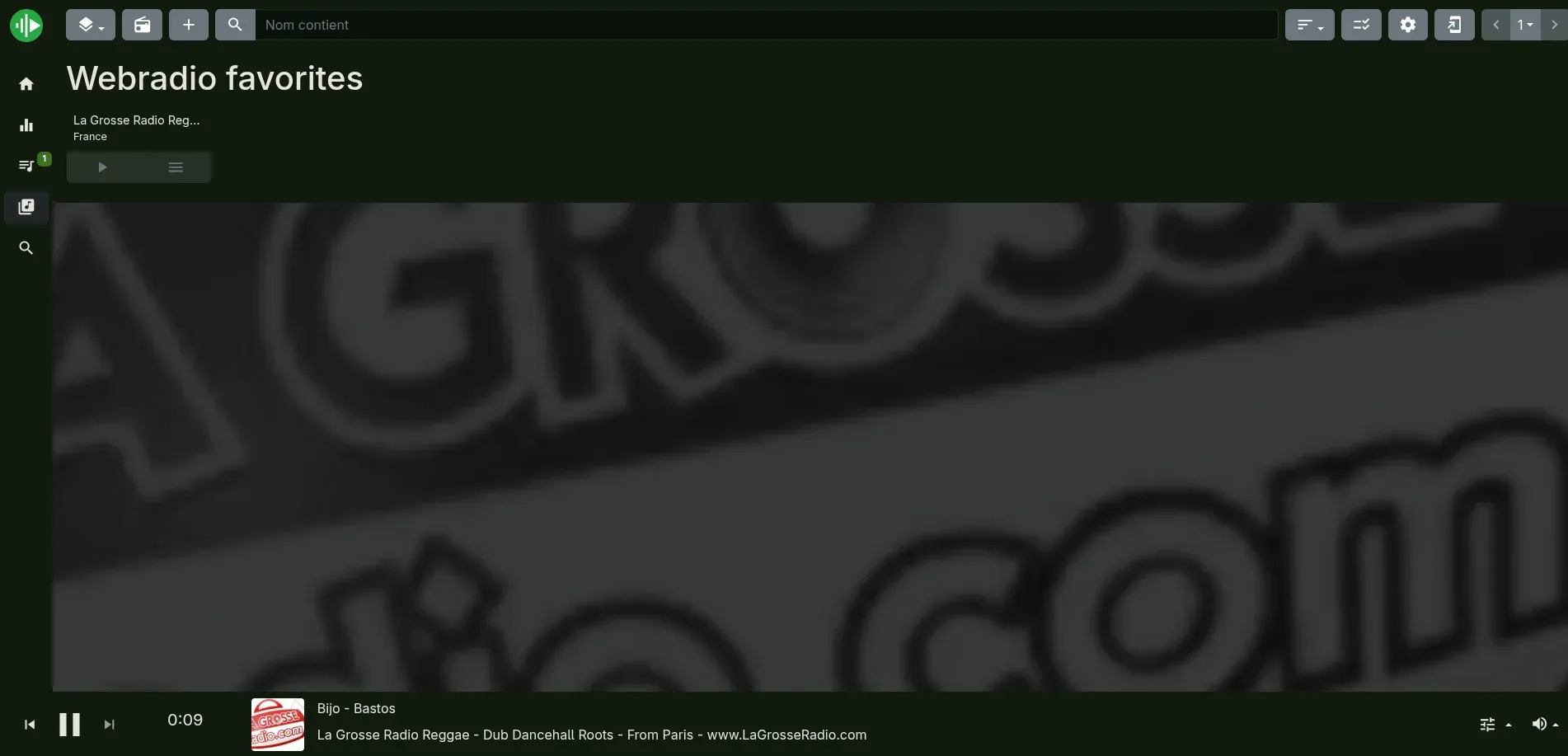
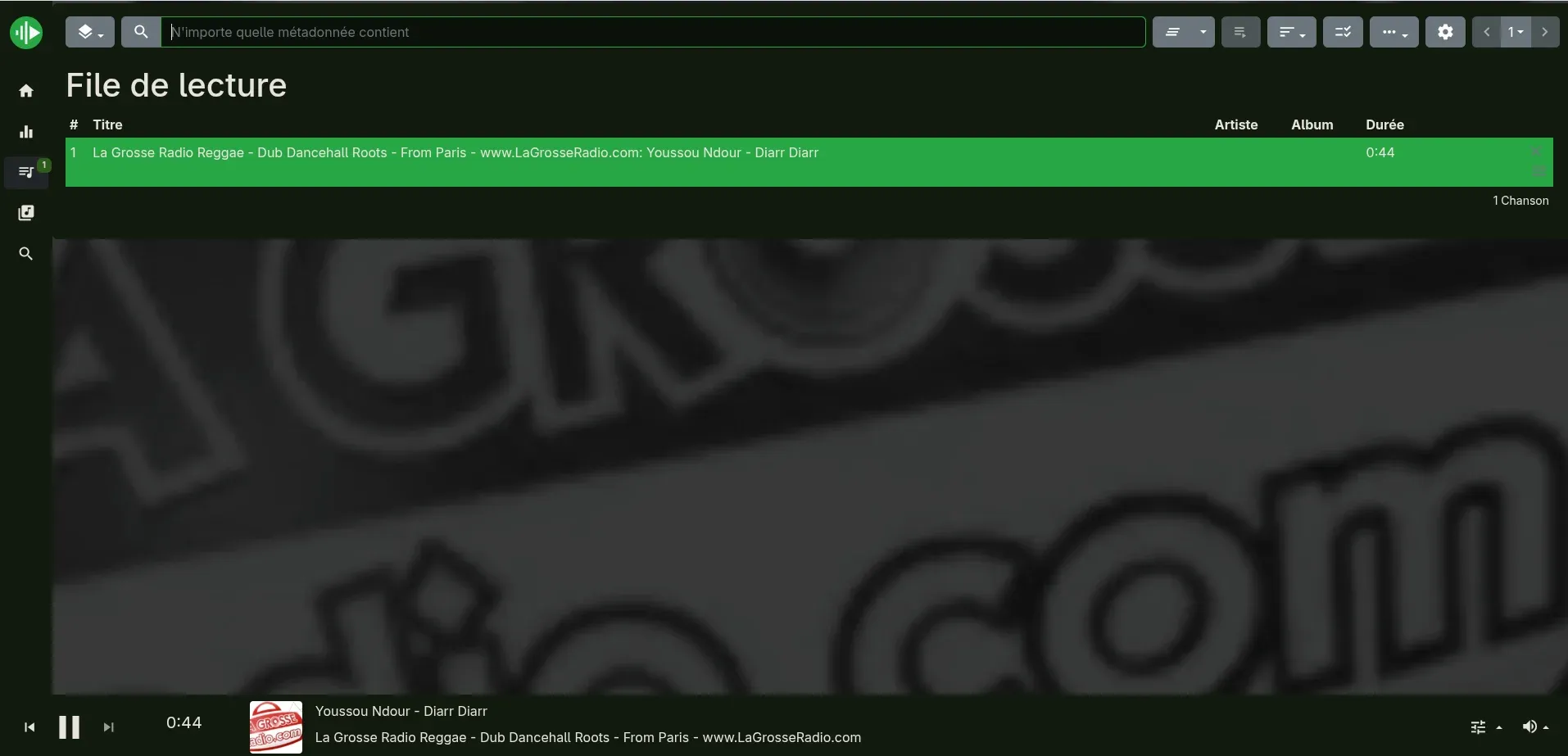
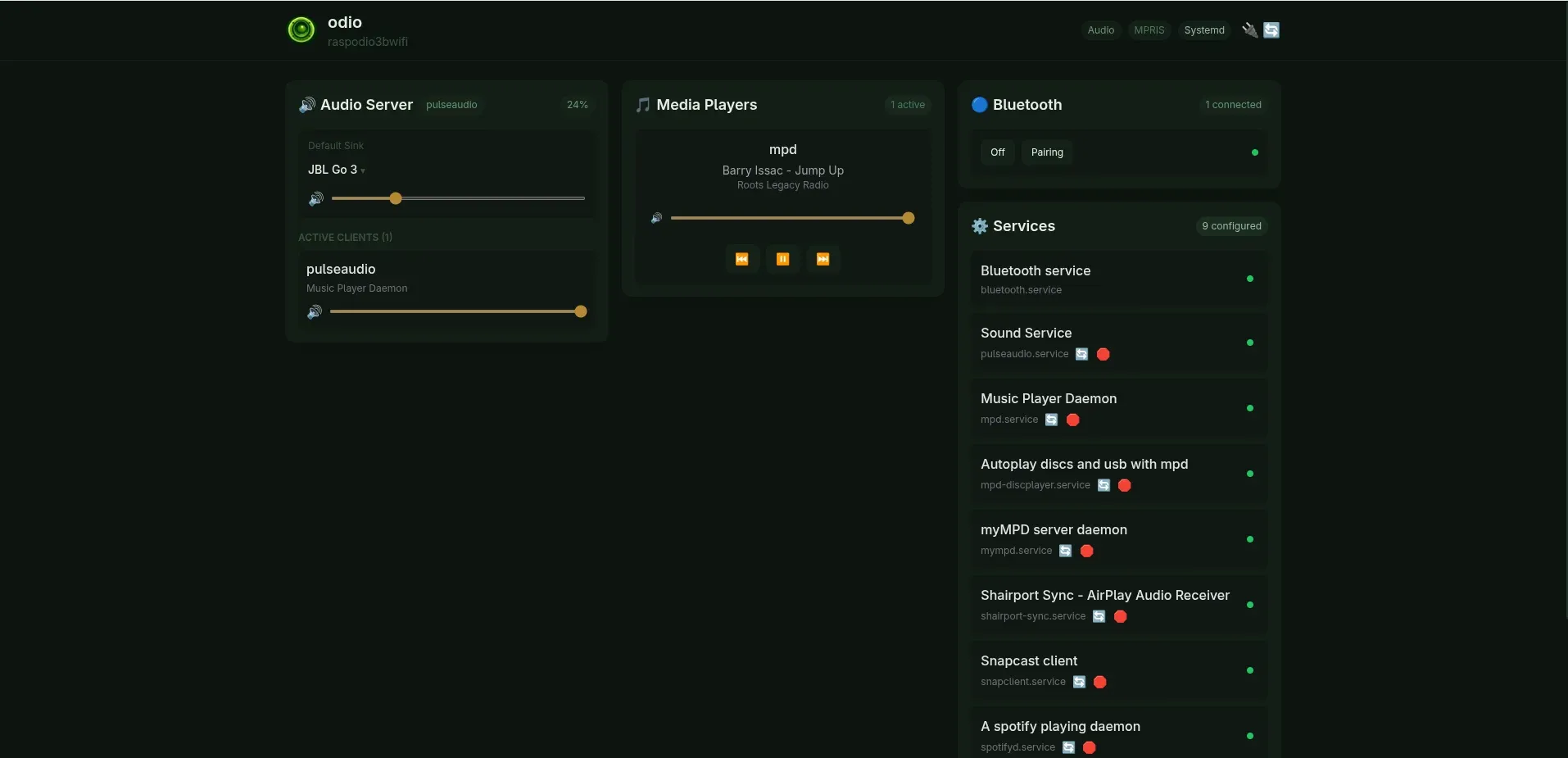
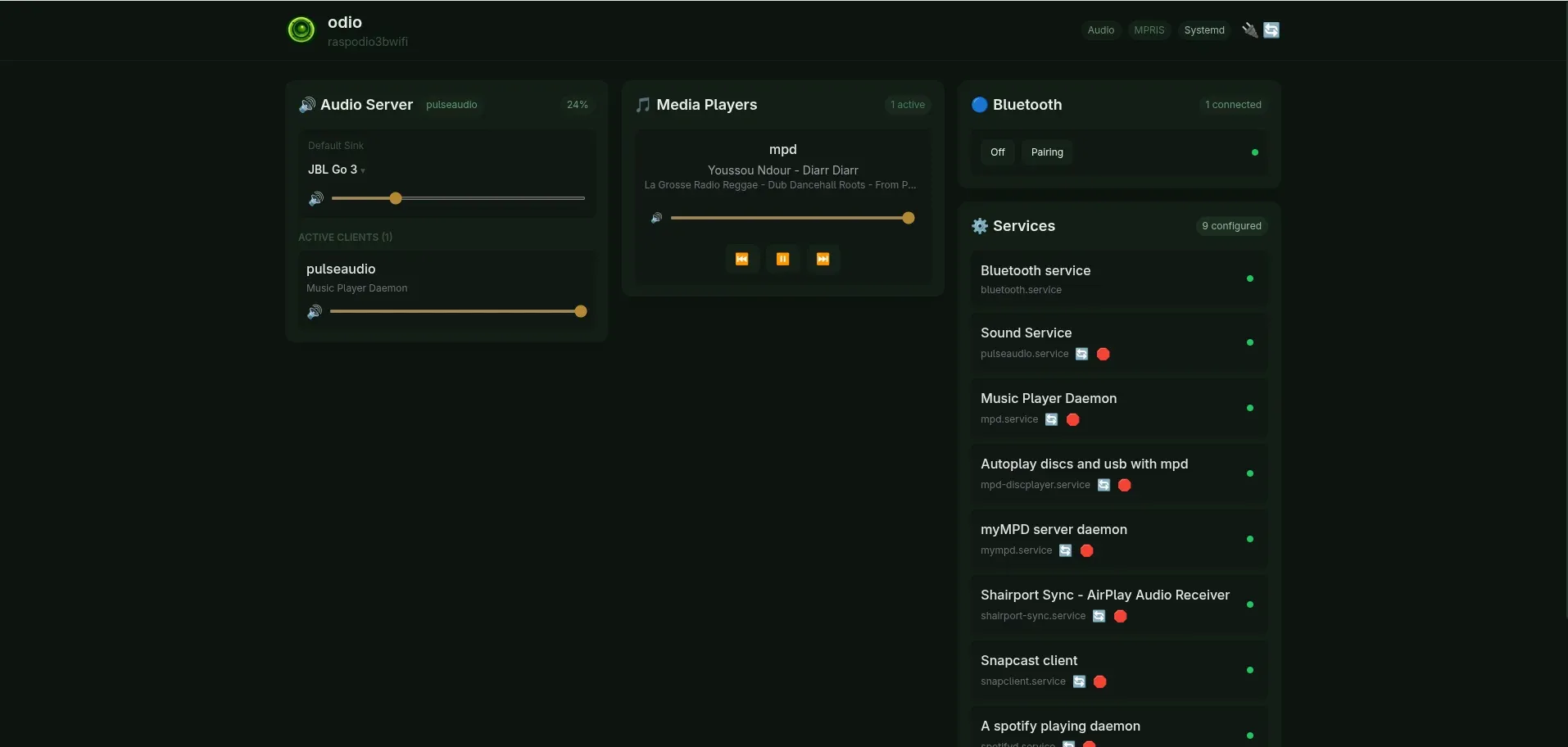
Built-in upmpdcli sources
Section titled “Built-in upmpdcli sources”Browsing an odio node from any UPnP/DLNA control point (BubbleDS Next, BubbleUPnP, Home Assistant’s media browser) exposes these radio sources as top-level folders in the library:
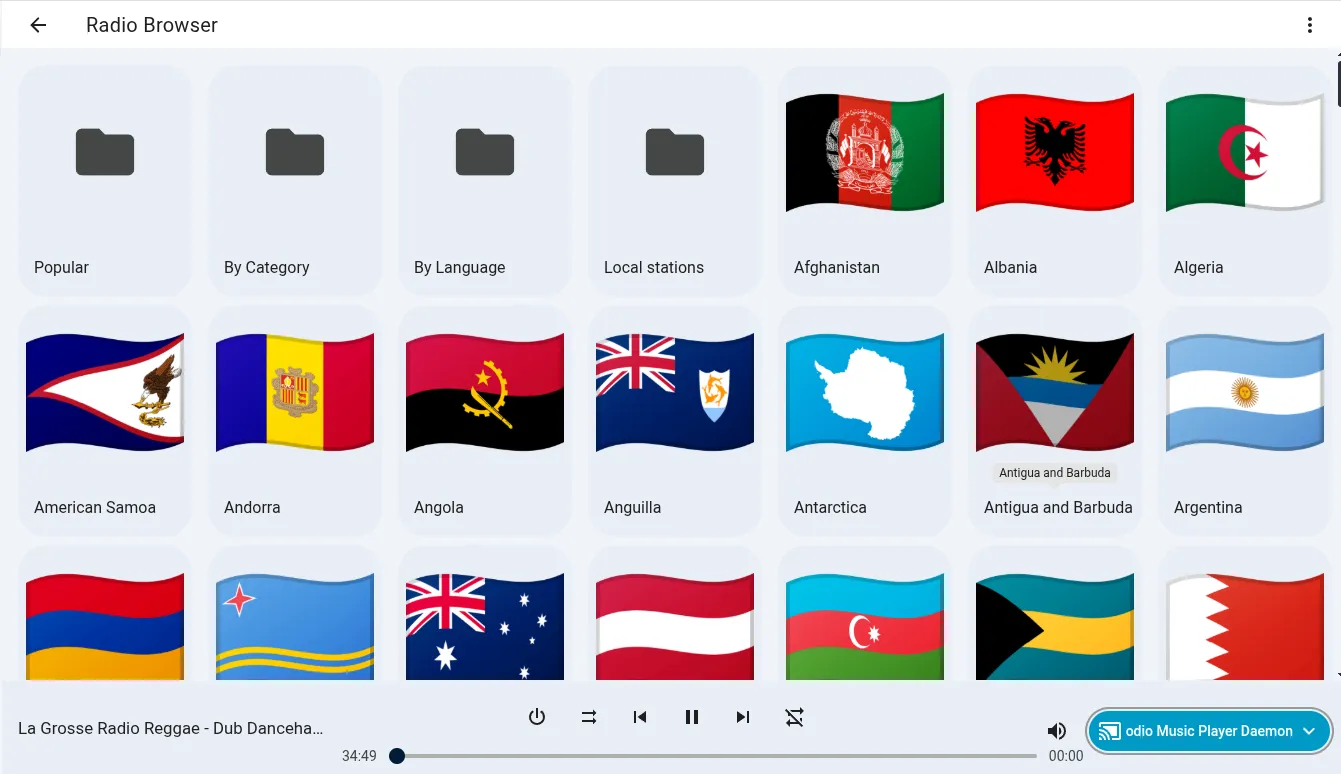
- Radio Browser, the radio-browser.info community catalog, navigable by country, language, or tag.
- Radio Paradise, direct access to Radio Paradise’s streams.
- Mother Earth Radio, high-quality streams from Mother Earth Radio.
- Upmpdcli Radio List, a server-side curated station list configured in upmpdcli.
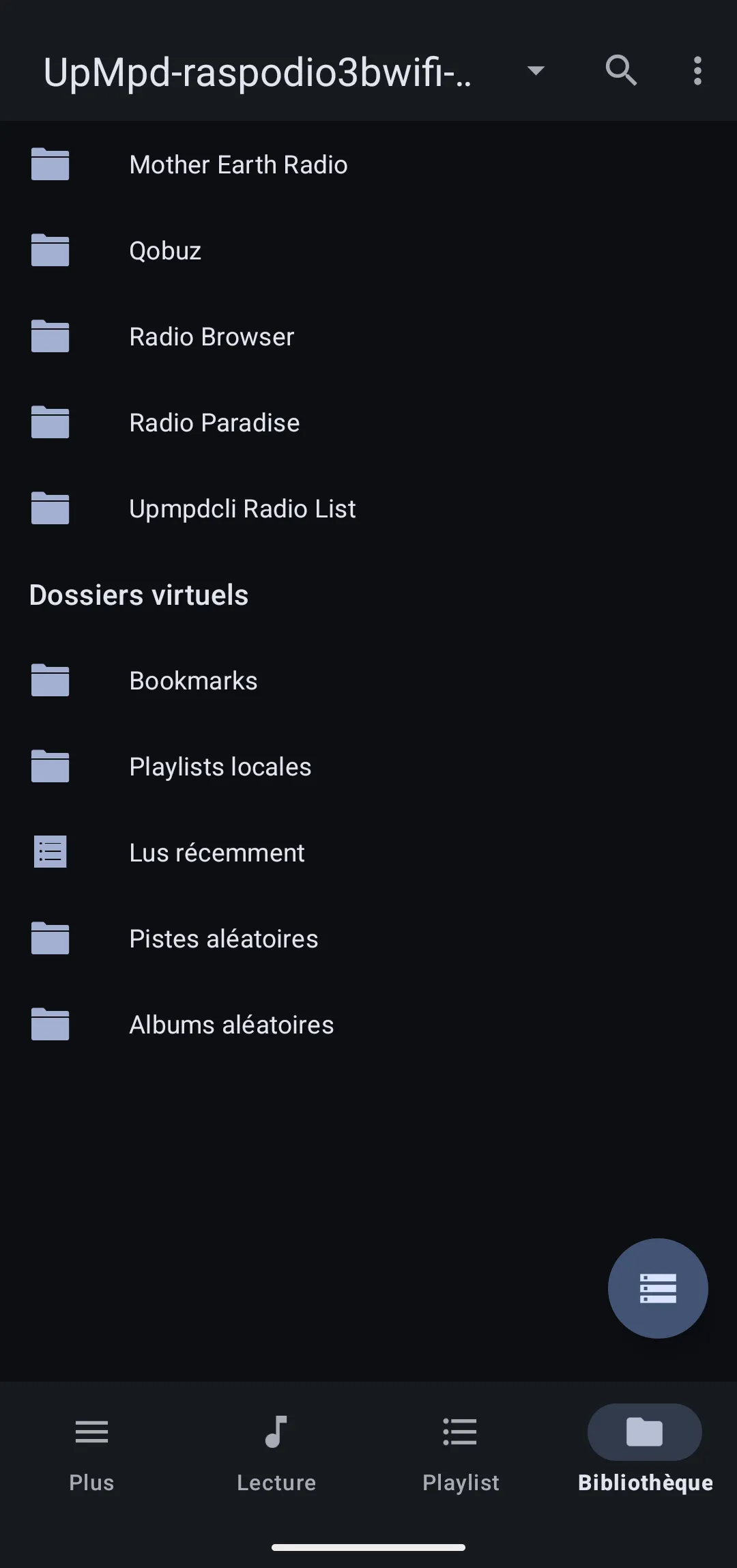
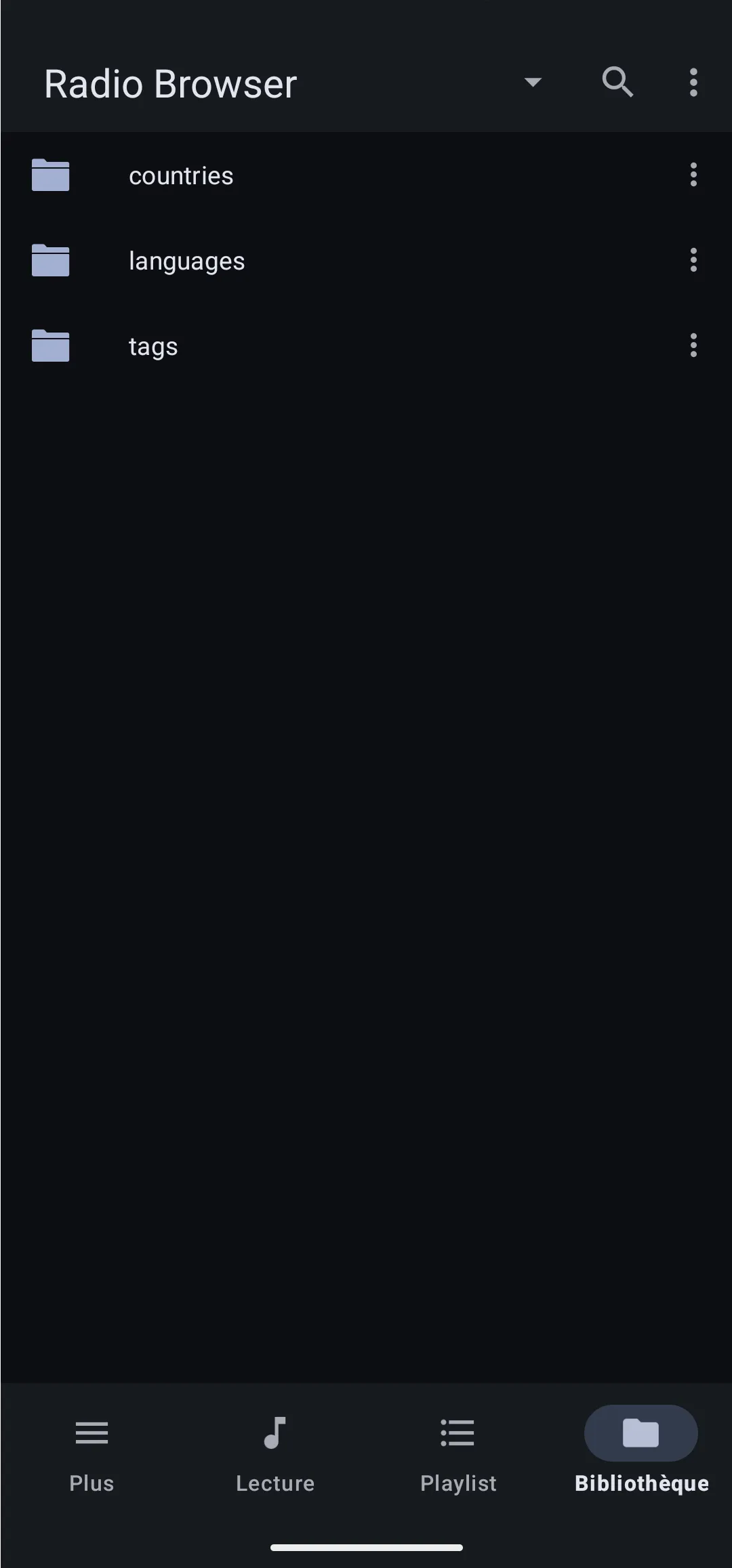
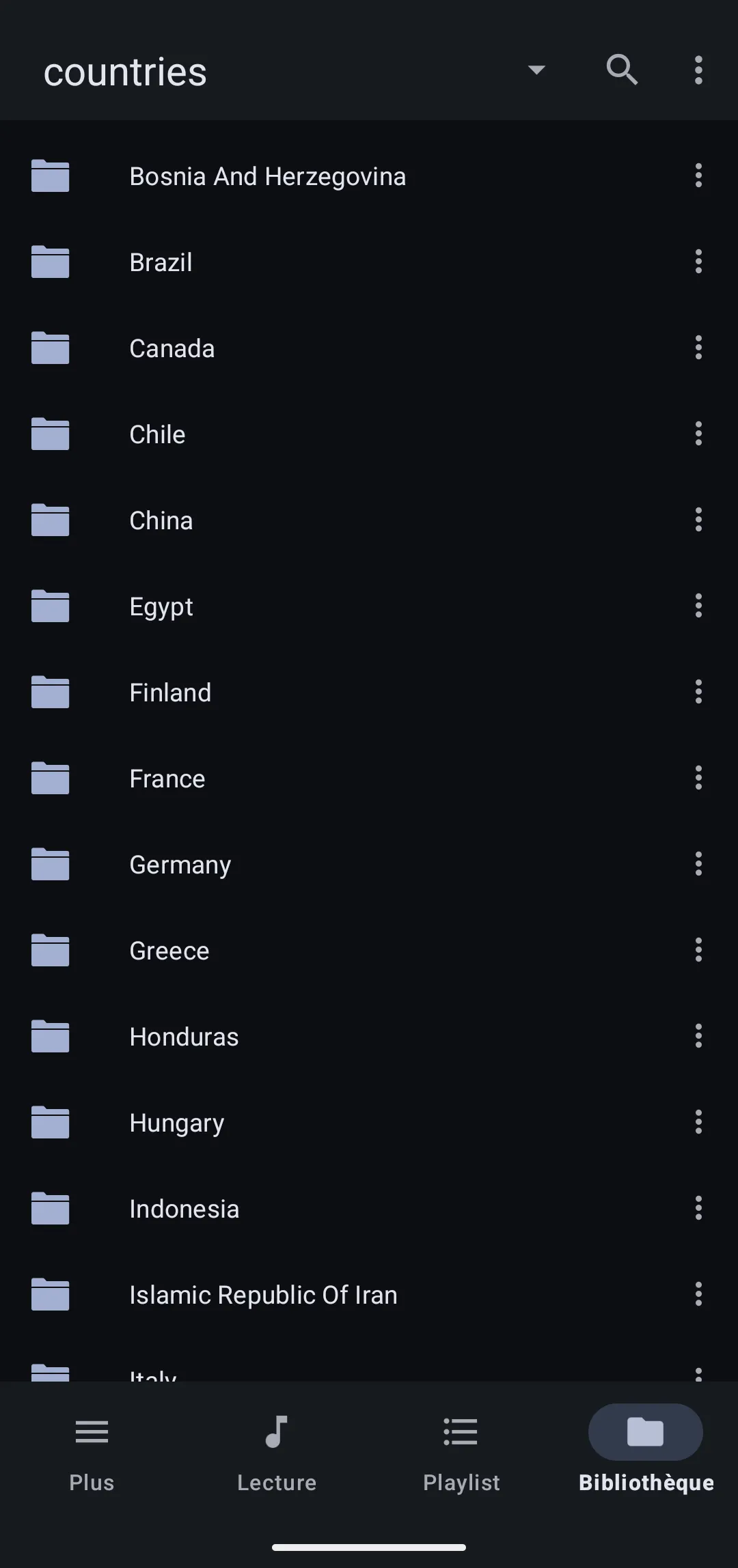
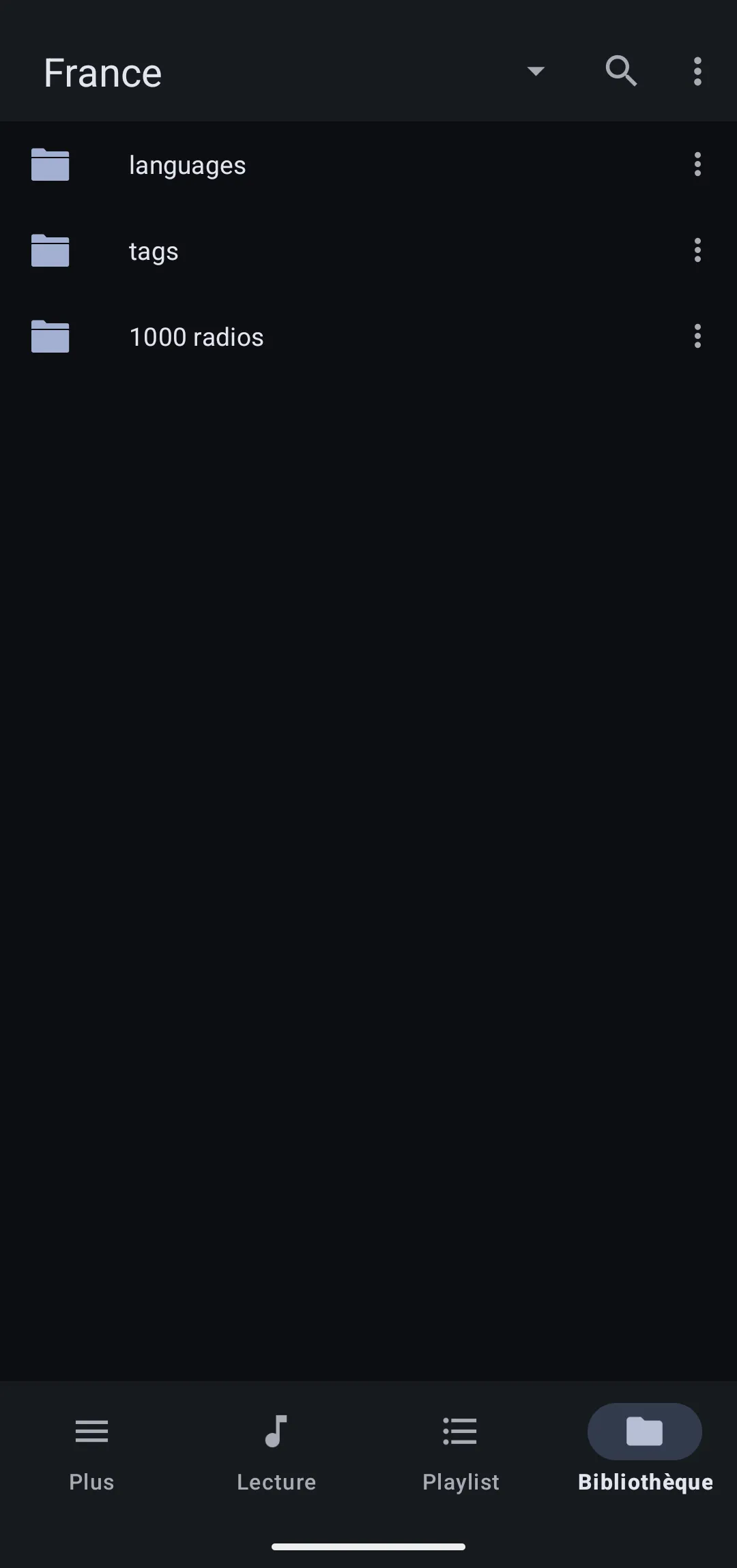
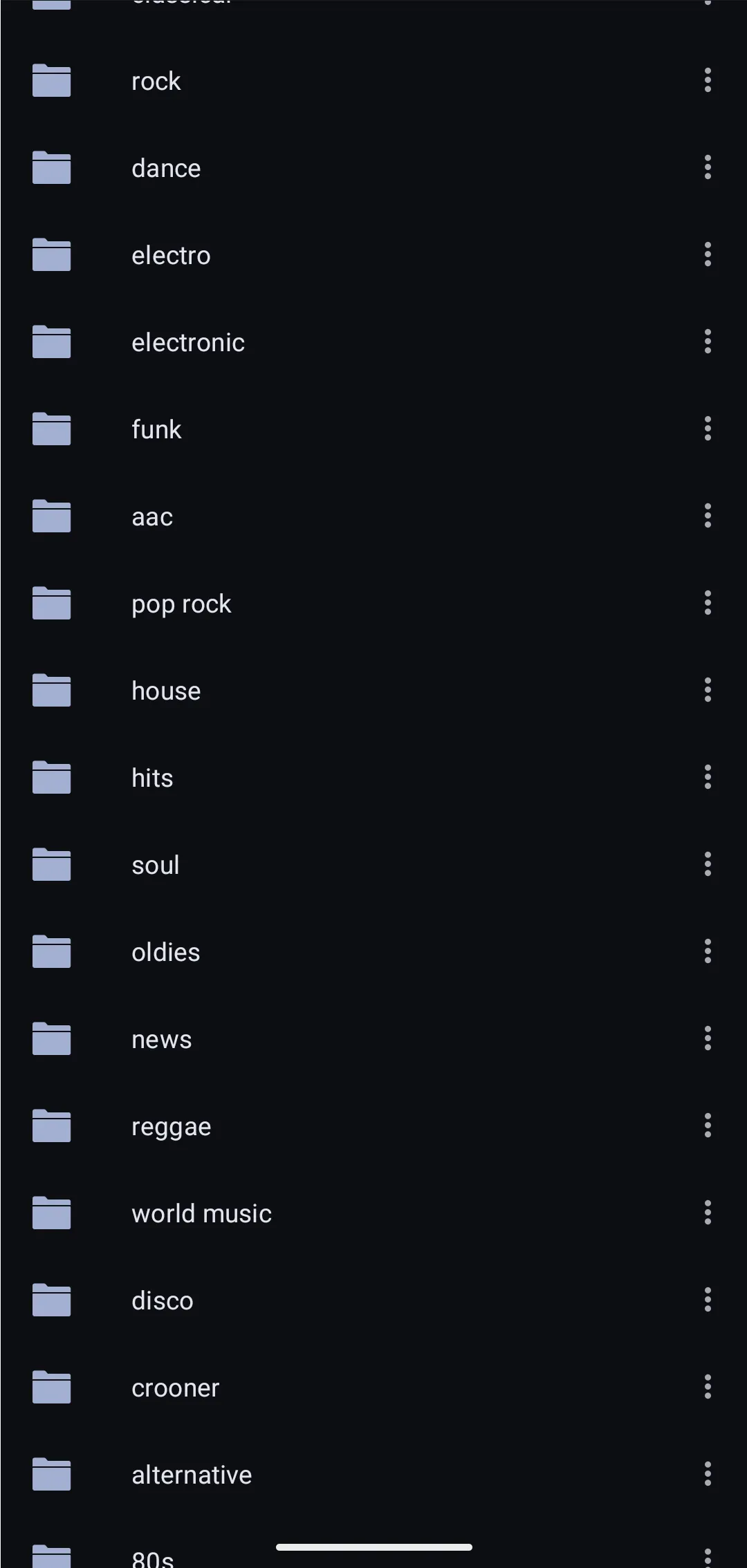
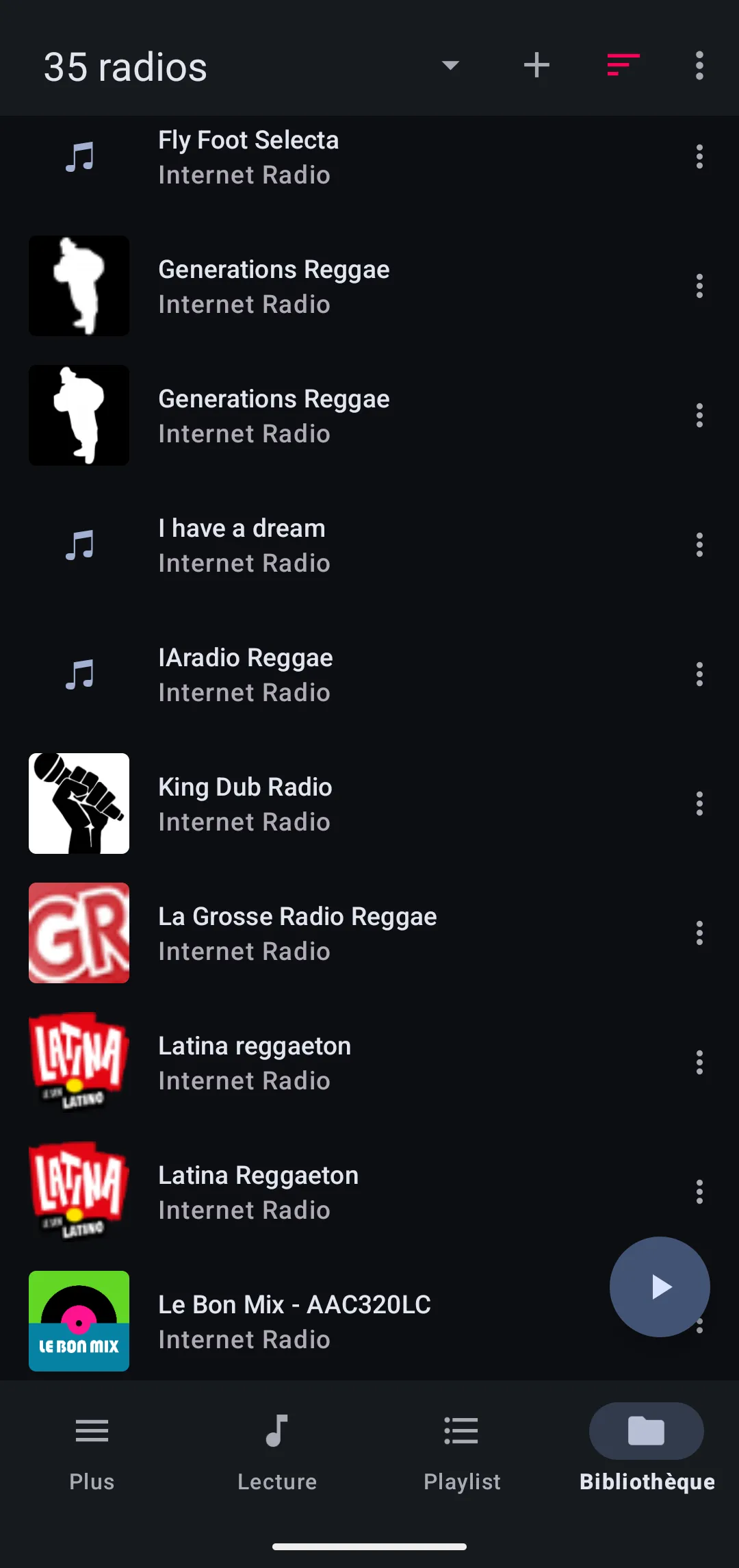
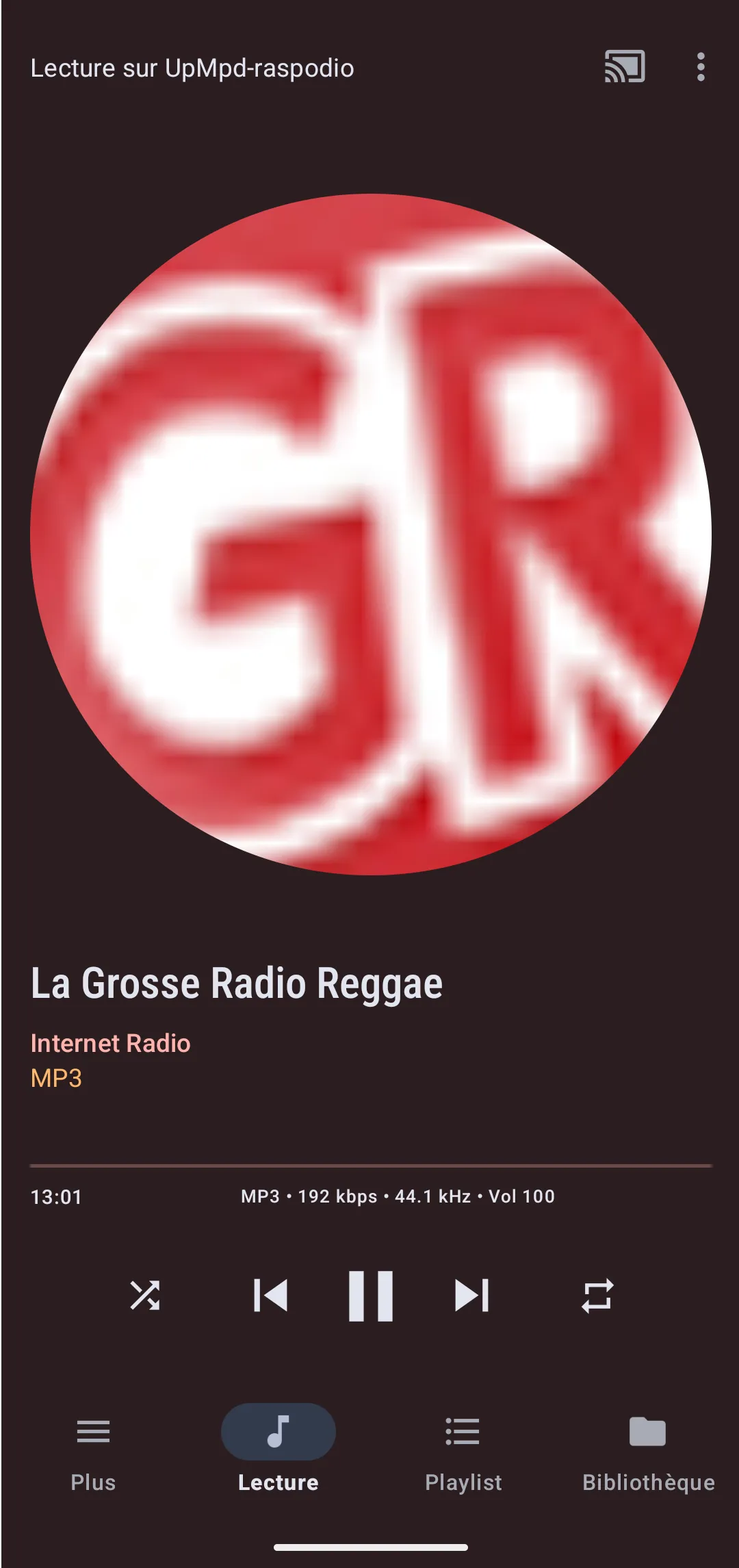
Pick a station, it plays through the odio node like any other source. Playback is visible in the odio API as an MPD session, controllable from the embedded UI, the odio application, or Home Assistant.
Cover art
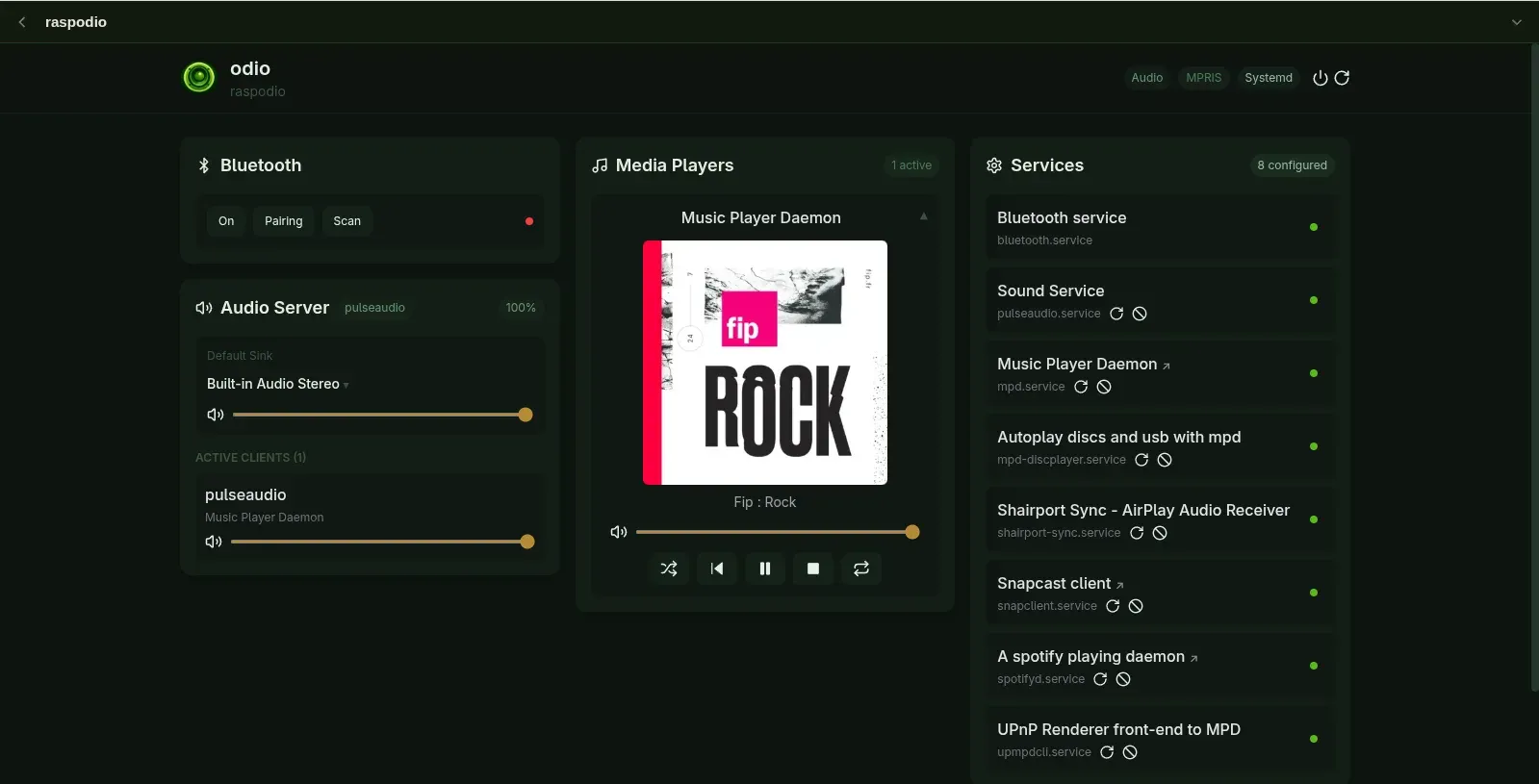
Section titled “Cover art”WebradioDB ships its own station artwork, so catalog stations display cover art out of the box. For everything else, mpd2mpris v0.11.0 resolves artwork automatically. Remote sources only kick in when nothing local is found, and split by what the station gives them:
- Stations that broadcast artist and title in their stream metadata get the real album cover, looked up by album from Deezer, iTunes, or MusicBrainz / Cover Art Archive, the same track-level sources mpd2mpris uses for the rest of the library.
- Stations with no track metadata fall back to a station logo, from the Radio Browser favicon or myMPD’s WebradioDB, matched on the stream URL.
- Some stations end up with no cover at all: nothing matched the stream URL in WebradioDB or Radio Browser, and either the station broadcasts no metadata or its artist–title pair turned up nothing in any of the album sources.
Each source is opt-in and ordered by priority: [Cover] sources for the album lookups, [Cover] stream_sources for the stream-URL ones (order is the lookup priority, anything unlisted is off). Lookups run asynchronously, so a slow one never blocks the rest of the metadata, and the resolved cover surfaces over MPRIS in the odio UI, myMPD, and any other MPRIS consumer.
Via Home Assistant’s Radio Browser
Section titled “Via Home Assistant’s Radio Browser”If you’d rather stay inside Home Assistant, its Radio Browser integration is backed by the same radio-browser.info database. It adds a station catalog to the HA media browser that can be played to any odio node exposed as an AirPlay, DLNA/UPnP, or MPD media player entity.
Discovery and browsing live in HA, playback lands on odio as any other network speaker.
Via a remote MPD
Section titled “Via a remote MPD”MPD plays HTTP streams natively, so any station URL can be queued directly:
mpc add http://example.stream/radio.mp3mpc playAny MPD client (M.A.L.P., myMPD, ncmpcpp) can store stations as playlists or favorites. The remote MPD setup in the MPD guide also applies here, if you already run MPD on a NAS with its library and station list and output audio to the odio node over PulseAudio TCP, your station favorites sit alongside the rest of your library.
Example: drop an M3U station list in MPD’s playlist folder
Take any M3U file of station URLs and drop it in MPD’s playlist directory, either on the odio node itself or on the NAS running MPD. The playlist then shows up in any MPD client next to your regular playlists.
Format is plain M3U, one #EXTINF line per station followed by the stream URL:
#EXTM3U#EXTINF:0,FIPhttp://icecast.radiofrance.fr/fip-hifi.aac#EXTINF:0,FIP Jazzhttp://direct.fipradio.fr/live/fip-webradio2.mp3#EXTINF:0,TSF Jazzhttp://tsfjazz.ice.infomaniak.ch:80/tsfjazz-high#EXTINF:0,Radio Novahttp://radionova.ice.infomaniak.ch/radionova-256.aac#EXTINF:0,Couleur 3http://stream.srg-ssr.ch/m/couleur3/mp3_128Drop it as e.g. ~/.mpd/playlists/webradios-fr.m3u (or wherever your playlist_directory points), run mpc lsplaylists to confirm MPD picked it up, then load and play it from any client.
For posterity: manual cover art via a CUE folder (pre-v0.11.0)
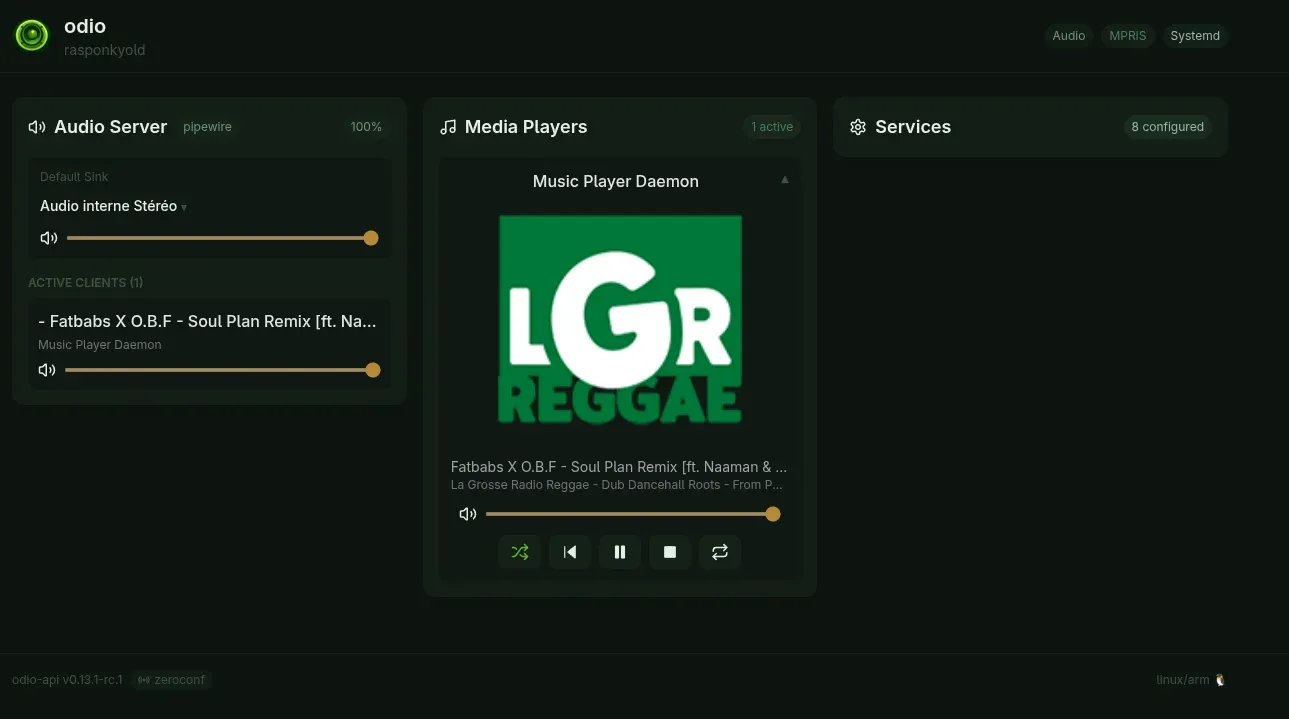
Before automatic lookup landed, mpd2mpris v0.10.0 offered a CUE-based workaround that reused the same cover-art pipeline as audio CDs: drop a cover.{jpg,png,webp} alongside a playlist.cue in MPD’s music_directory, and the cover surfaces while the station plays. Kept here for reference; the automatic lookup above makes it unnecessary for most stations.
Per station, create a folder under MPD’s music directory and drop a cover image inside:
mkdir /media/USB/GrosseRadioReggae/# Place cover.png (or cover.jpg, cover.webp) in there.Then write a playlist.cue next to the cover, referencing the stream URL:
REM COVER "/media/USB/GrosseRadioReggae/"REM GENRE "Reggae"PERFORMER "La Grosse Radio Reggae"TITLE "La Grosse Radio Reggae"FILE "http://hd.lagrosseradio.info/lagrosseradio-reggae-192.mp3" MP3 TRACK 01 AUDIO TITLE "La Grosse Radio Reggae"The cover surfaces because mpd2mpris scans the directory holding the loaded .cue for cover.{jpg,png,webp}, the same CUE fallback step that makes audio CDs work. The REM lines (including REM COVER) are documentation only, mpd2mpris doesn’t parse them. Run mpc update, browse to the folder in any MPD client, and play the track inside the CUE virtual directory (MPD’s CUE plugin is configured with as_directory "true" on odio by default).
Hacky, but it worked for favorite stations or motivated setups. See discussion #33 for the full rationale.