How to use a NAS music library with odio nodes
A NAS is where your music library lives. odio doesn’t try to replace it, it uses it.
Music library
Section titled “Music library”Mount your NAS music folder into MPD’s music directory via NFS or SMB, trigger a database update with mpc update, and browse your library from any MPD client. Playback goes through the odio node’s audio output.
Alternatively, serve the library over UPnP/DLNA (see DLNA server below) and browse it from any control point, directing playback to the odio node acting as a DLNA renderer.
MPD on the NAS
Section titled “MPD on the NAS”If your library is large, running MPD directly on the NAS avoids slow database scans over NFS. The NAS handles the library; the odio node handles the audio, over PulseAudio TCP.
Install MPD; it runs as a user service, so disable the system service the package sets up:
sudo apt install mpdsudo systemctl disable --now mpd.service~/.config/mpd/mpd.conf:
music_directory     "/share/Musique/music"playlist_directory  "/share/Musique/playlists"db_file             "/share/Musique/mpd/tag_cache"
state_file          "/var/lib/mpd/state"sticker_file        "/share/Musique/mpd/sticker.sql"
bind_to_address     "localhost"bind_to_address     "192.168.1.21"bind_to_address     "/run/user/1001/mpd/socket"port                "6600"auto_update         "yes"
zeroconf_enabled    "yes"zeroconf_name       "nas-MPD"
input {    plugin "curl"}
audio_output {    type   "pulse"    name   "raspodio"    server "192.168.1.6"}
audio_output {    type       "fifo"    name       "SnapMPD"    path       "/tmp/mpdfifo"    format     "48000:16:2"    mixer_type "software"}
filesystem_charset "UTF-8"- The third
bind_to_addressis a user socket; mpd2mpris connects to it (see below). input { plugin "curl" }lets MPD play HTTP streams, required for webradios.- The
pulseoutput sends audio to the odio node; thefifooutput (SnapMPD) feeds the Snapcast MPD stream.
Enable the user service:
systemctl --user enable --now mpd.serviceMPRIS and cover art
Section titled “MPRIS and cover art”For the NAS MPD to appear as an MPRIS player (and for cover art to resolve), run mpd2mpris on the NAS. It ships from apt.odio.love:
sudo apt install mpd2mprisConfigure ~/.config/mpd2mpris/mpd2mpris.conf:
[Connection]host = /run/user/1001/mpd/socketConnecting via the unix socket gives mpd2mpris local filesystem access, so cover-art lookups read cover.* files straight off the disk, including non-standard names like folder.jpg. Connecting over TCP (the LAN address) works too, but then mpd2mpris falls back to MPD’s albumart command, which resolves only the standard cover.{png,jpg,jxl,webp} names and ships the bytes through MPD.
systemctl --user enable --now mpd2mpris.serviceDLNA server (MiniDLNA)
Section titled “DLNA server (MiniDLNA)”To serve the library over UPnP/DLNA instead of (or alongside) MPD, MiniDLNA (a.k.a. ReadyMedia) is a lightweight media server. Any control point can then browse it and direct playback to the odio node as a DLNA renderer.
sudo apt install minidlna/etc/minidlna.conf:
media_dir=A,/share/Musique/musicdb_dir=/share/Musique/dlnaport=8200friendly_name="NAS upnp"inotify=yes
album_art_names=Cover.jpg/cover.jpg/AlbumArtSmall.jpg/albumartsmall.jpgalbum_art_names=AlbumArt.jpg/albumart.jpg/Album.jpg/album.jpgalbum_art_names=Folder.jpg/folder.jpg/Thumb.jpg/thumb.jpgmedia_dir=A,...— theArestricts the scan to audio.inotify=yes— re-scan automatically on file changes.album_art_names— filename patterns matched for cover art (additive across lines).
sudo systemctl enable --now minidlna.serviceThe server shows up as “NAS upnp” in any control point (BubbleDS Next, BubbleUPnP, Home Assistant’s media browser).
Snapserver for multi-room
Section titled “Snapserver for multi-room”The NAS is the natural place to run a Snapserver, it’s always on, has the CPU for mixing, and sits at the center of your network. Feed it audio sources, MPD, Spotify, AirPlay, and every odio node receives synchronized streams as a Snapcast client. Each room can play a different source or all play the same thing, perfectly in sync.
The setup below targets Snapserver v0.35.0 or later, which exposes the control-script metadata pipeline that snapclientmpris on each client picks up. Debian 13 still ships 0.31, so grab the matching .deb from the Snapcast releases page (pick the right arch and Debian codename, the example below is amd64 + trixie):
wget https://github.com/snapcast/snapcast/releases/download/v0.35.0/snapserver_0.35.0-1_amd64_trixie.debsudo dpkg -i snapserver_0.35.0-1_amd64_trixie.debRunning Snapserver as a user service
Section titled “Running Snapserver as a user service”Like the rest of the odio stack, Snapserver can run in your user session. Disable the system service and create a user unit:
sudo systemctl disable --now snapserver.service~/.config/systemd/user/snapserver.service:
[Unit]Description=Snapcast serverDocumentation=man:snapserver(1)Wants=network-online.target avahi-daemon.serviceAfter=network-online.target time-sync.target avahi-daemon.service
[Service]EnvironmentFile=-/etc/default/snapserverExecStart=/usr/bin/snapserver --logging.sink=system --server.datadir="${HOME}" $SNAPSERVER_OPTSRestart=on-failure
[Install]WantedBy=multi-user.targetsystemctl --user enable --now snapserver.serviceInstall Snapweb for the web UI:
wget https://github.com/snapcast/snapweb/releases/download/v0.9.3/snapweb_0.9.3-1_all.debsudo dpkg -i snapweb_0.9.3-1_all.debConfigure /etc/snapserver.conf:
[http]enabled = truebind_to_address = 0.0.0.0doc_root = /usr/share/snapweb
[tcp-control]enabled = truebind_to_address = 0.0.0.0
MPD stream
Section titled “MPD stream”The MPD fifo output (SnapMPD, in the mpd.conf above) writes PCM to /tmp/mpdfifo. Add the matching stream source in /etc/snapserver.conf:
[stream]source = pipe:///tmp/mpdfifo?name=MPD&controlscript=meta_mpd.pyThe controlscript=meta_mpd.py parameter wires snapserver to MPD’s metadata over the local socket, so the currently playing track propagates through Stream.OnProperties to every client (and through snapclientmpris to every MPRIS surface in every room). The script ships with snapserver in /usr/share/snapserver/plug-ins/.
Spotify streams (Librespot, go-librespot)
Section titled “Spotify streams (Librespot, go-librespot)”Two Spotify Connect daemons work as Snapcast sources. Pick whichever fits, or run both in parallel as separate streams.
Librespot is what Snapcast has always supported, simple to install. With snapserver’s built-in librespot:// source, only the track title is propagated to snapserver, no artist or cover art, and librespot doesn’t expose its own MPRIS interface on the NAS. When the controller is a Spotify desktop or phone app, that app keeps its own rich MPRIS surface on its host, so any other odio node running on the controlling host sees the full metadata (see the carousel on the Snapcast page).
Install via Cargo:
sudo apt install build-essential libasound2-devcurl https://sh.rustup.rs -sSf | shcargo install librespotsudo mv ~/.cargo/bin/librespot /usr/local/bin/To pick up a new librespot release later:
cargo install librespotsudo mv ~/.cargo/bin/librespot /usr/local/bin/systemctl --user restart snapserverSnapserver source line:
[stream]source = librespot:///usr/local/bin/librespot?name=SpotifyHD&devicename=SnapSpotHD&bitrate=320&volume=100&normalize=falseFor full metadata, snapcast-meta-librespot is a control script fed by librespot’s --onevent hook: title, artists, album, cover and duration reach every room, and the title no longer changes about 30 seconds early, when librespot preloads the next track. Copy meta_librespot.py to /usr/share/snapserver/plug-ins/ and declare the stream as a process:// source, the librespot:// type would keep overwriting the metadata:
[stream]source = process:///usr/local/bin/librespot?name=SpotifyHD&sampleformat=44100:16:2&wd_timeout=7800¶ms=--name%20SnapSpotHD%20--bitrate%20320%20--backend%20pipe%20--initial-volume%20100%20--verbose%20--onevent%20/usr/share/snapserver/plug-ins/meta_librespot.py&controlscript=meta_librespot.pyWith controlscriptparams=--mpris appended, the script also publishes a read-only MPRIS player on the NAS’s session bus, so go-odio-api on the NAS shows what plays there. It needs python3-dbus-fast. Playback is still driven from the Spotify app, librespot has no control API. The README lists the requirements and limits, among them one librespot stream per snapserver.
go-librespot is a Go rewrite of the Spotify Connect daemon that exposes a local REST API for playback state and metadata. Paired with snapserver’s meta_go-librespot.py control script (shipped in /usr/share/snapserver/plug-ins/ since 0.33), it delivers full track metadata to every room. Pre-built binaries are on the go-librespot releases page:
sudo wget -O /usr/local/bin/go-librespot \ https://github.com/devgianlu/go-librespot/releases/latest/download/go-librespot_linux_amd64sudo chmod +x /usr/local/bin/go-librespotmkdir -p ~/.config/go-librespotThen in ~/.config/go-librespot/config.yml, pipe PCM to stdout (snapserver captures it from process://), expose the REST API at port 24879 for the control script, and let users pair from the Spotify app via Zeroconf:
device_name: "SnapSpot"device_type: "speaker"
audio_backend: "pipe"audio_output_pipe: "/dev/stdout"audio_output_pipe_format: "s16le"
bitrate: 320
normalisation_disabled: truenormalisation_use_album_gain: truenormalisation_pregain: 0.0
server:  enabled: true  port: 24879
credentials:  type: zeroconf  zeroconf:    persist_credentials: true
mpris_enabled: true
The source line in /etc/snapserver.conf:
[stream]source = process:///usr/local/bin/go-librespot?name=Spotify&sampleformat=44100:16:2¶ms=--config_dir%20/home/odio/.config/go-librespot&dryout_ms=2000&wd_timeout=0&log_stderr=false&controlscript=meta_go-librespot.py&controlscriptparams=--stream=Spotify%20--librespot-host=127.0.0.1%20--librespot-port=24879audio_output_pipe_format: s16le in the config and sampleformat=44100:16:2 in the source line have to match, otherwise snapserver decodes garbage. Adjust the --config_dir path if the snapserver user’s home isn’t /home/odio; %20 is the URL-encoded space (snapserver doesn’t accept literal spaces in the query string).
AirPlay stream (shairport-sync)
Section titled “AirPlay stream (shairport-sync)”Install shairport-sync on the NAS and disable the standalone service (Snapserver launches its own instance):
sudo apt install shairport-syncsudo systemctl disable --now shairport-syncAdd the stream source in /etc/snapserver.conf:
[stream]source = airplay:///usr/bin/shairport-sync?name=Airplay&devicename=SnapAir&port=5000Because Snapserver runs in your user session, shairport-sync runs as your user on the session bus and owns its D-Bus names without any extra system policy.
Restart Snapserver after adding all stream sources:
systemctl --user restart snapservergo-odio-api on the NAS
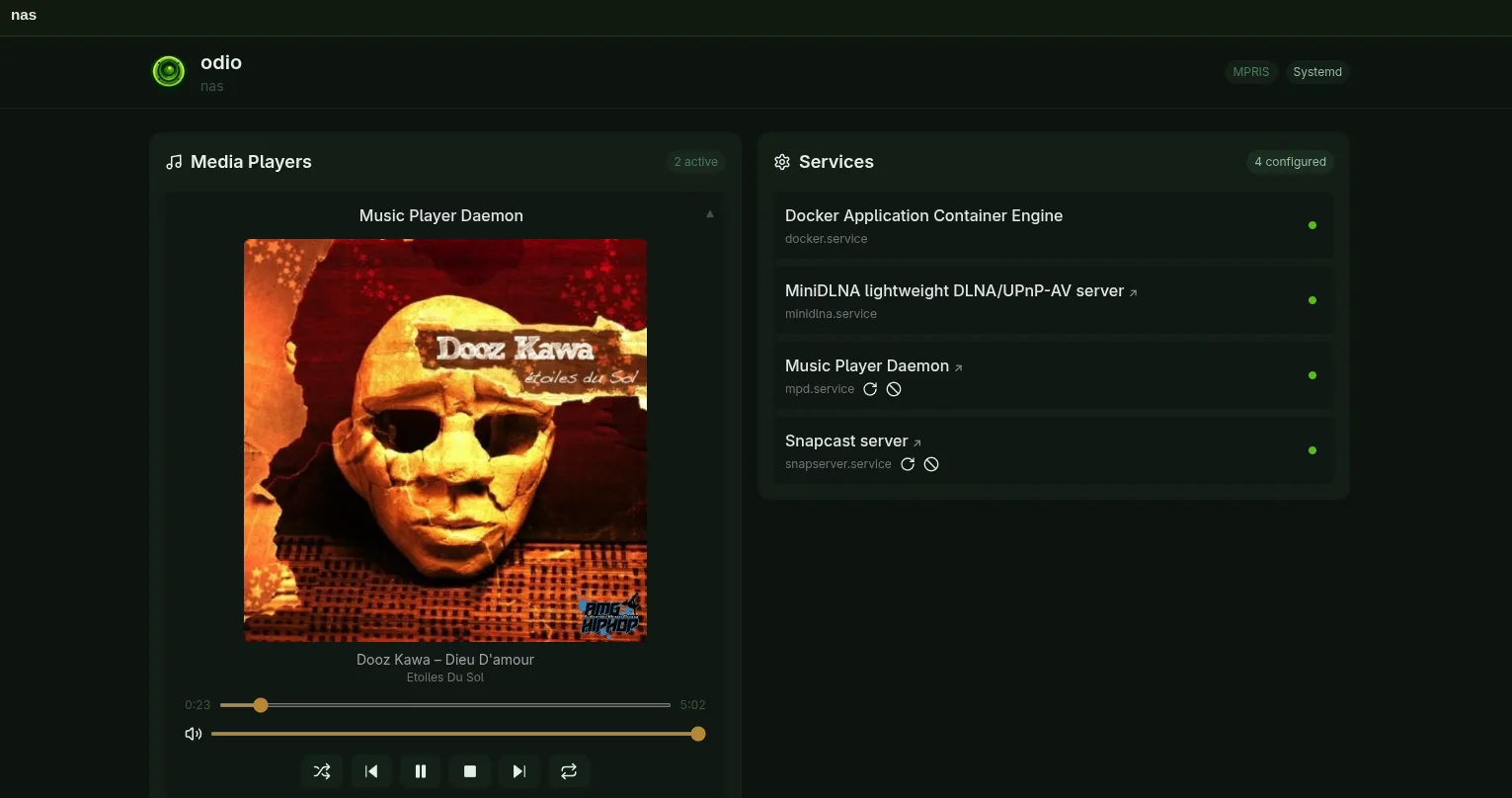
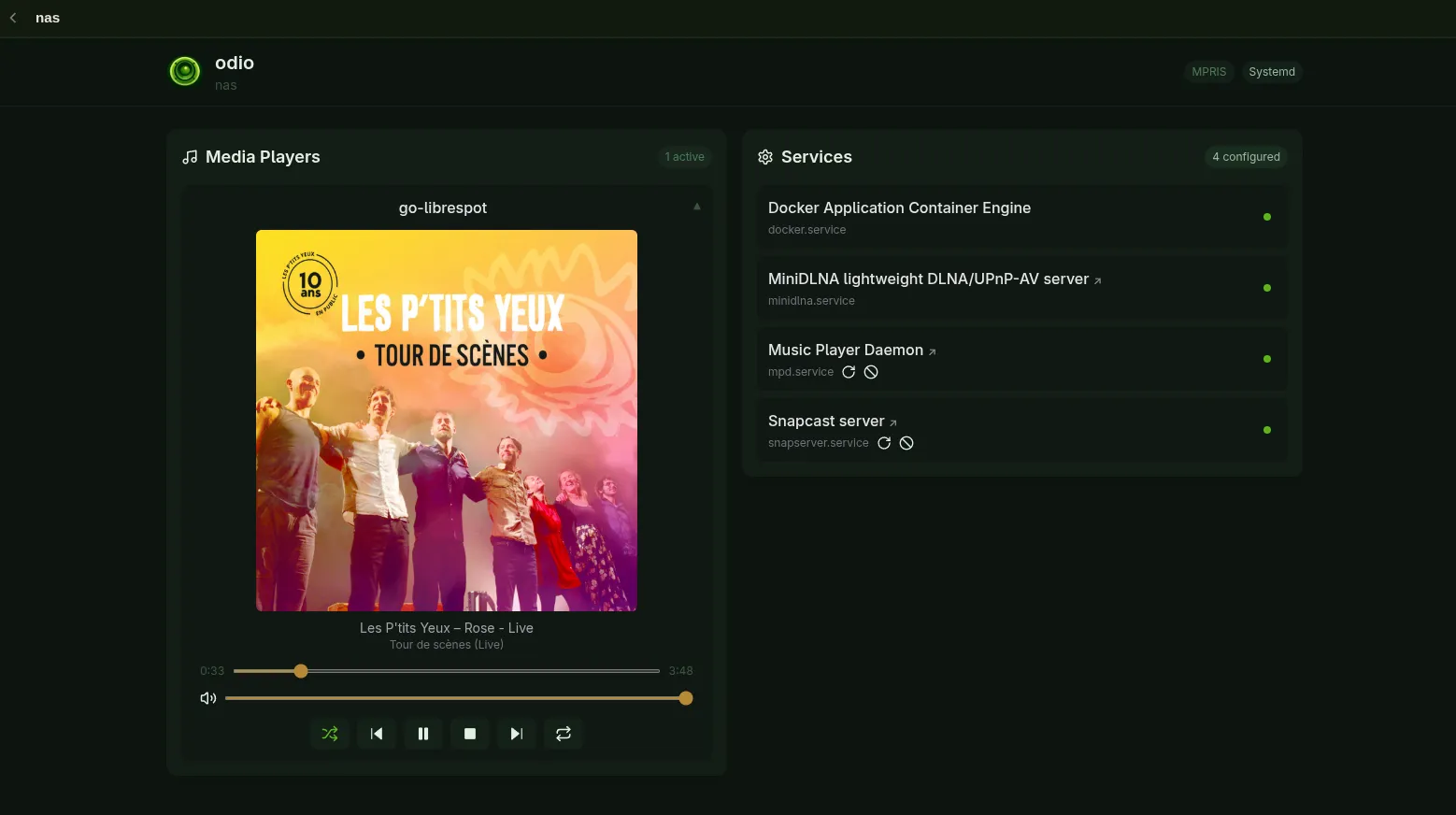
Section titled “go-odio-api on the NAS”You can also install go-odio-api directly on the NAS. It runs on any Linux system with a D-Bus user session, including OpenMediaVault. The NAS becomes an odio node with its own embedded web UI, controllable from the odio application and Home Assistant.