
How to stream AirPlay 2 to your odio Pi
Your odio node appears as an AirPlay 2 receiver on your local network via shairport-sync. No configuration needed on the client side.
- On your iPhone, iPad, or Mac, open Control Center or the AirPlay menu in any app.
- Select your odio node from the list of available speakers.
- Audio streams to the Pi.
Works with any app — Apple Music, Spotify, YouTube, podcasts, system audio.
Integration
Section titled “Integration”AirPlay sessions appear as MPRIS players in the odio application and Home Assistant. You can see what’s playing and control playback from the UI.
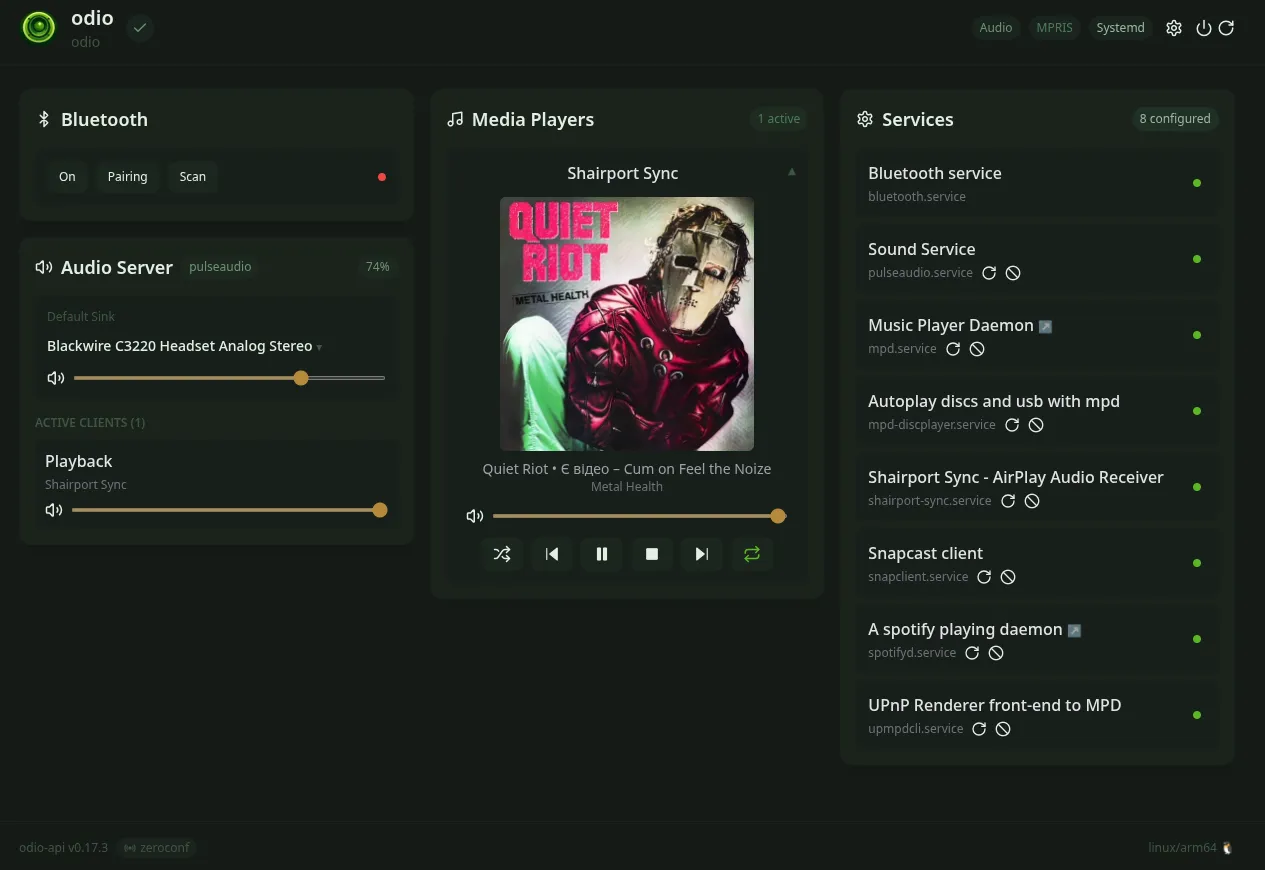
Before 2026.10.0b1, shairport-sync published its MPRIS interface on the system D-Bus, where the odio API does not look, so AirPlay sessions never showed up. Mykola (@VeeM) tracked it down and moved it to the session bus in odios#91. Upgrade an existing node to pick up the fix, see Upgrade.
In Snapcast mode, AirPlay audio is distributed to all rooms via Snapserver — see Snapcast setup.
Desktop integration (PulseAudio / PipeWire)
Section titled “Desktop integration (PulseAudio / PipeWire)”On a Linux desktop, PulseAudio natively discovers AirPlay receivers on the network via its RAOP module. The odio node appears as a remote audio output in your sound settings, no extra software needed.
On PipeWire desktops
Section titled “On PipeWire desktops”PipeWire’s PulseAudio compatibility layer handles RAOP discovery automatically. Install the RAOP discover module:
# Fedorasudo dnf install pipewire-module-raop-discover
# Debian / Ubuntusudo apt install pipewire-pulse
Add to your PipeWire-pulse config (~/.config/pipewire/pipewire-pulse.conf.d/raop.conf):
context.modules = [ { name = libpipewire-module-raop-discover }]Restart PipeWire:
systemctl --user restart pipewire-pulseOn PulseAudio desktops
Section titled “On PulseAudio desktops”Load the RAOP discover module:
load-module module-raop-discoverRestart PulseAudio:
systemctl --user restart pulseaudioThe odio node appears as an AirPlay sink in your sound settings or pavucontrol.
How it works
Section titled “How it works”shairport-sync runs as a systemd user service, outputting audio to PulseAudio. It registers itself on the user session D-Bus as an MPRIS player, which is how the odio API picks it up and exposes playback controls. The installer handles all of this — D-Bus policies, PulseAudio backend configuration, and service setup.