How to send odio audio to a Bluetooth speaker
odio can act as a Bluetooth source, routing whatever it’s playing (Spotify Connect, MPD, AirPlay, CDs, …) to a Bluetooth speaker or headphones. Once connected, the speaker shows up as a PulseAudio sink in the embedded UI’s Default Sink dropdown, selectable like any other output.
Pairing a speaker
Section titled “Pairing a speaker”Since odio-api v0.14.0, the Bluetooth panel in the embedded UI handles the whole flow, no CLI needed.
-
Put your Bluetooth speaker in pairing mode, usually a long-press on the Bluetooth button.
-
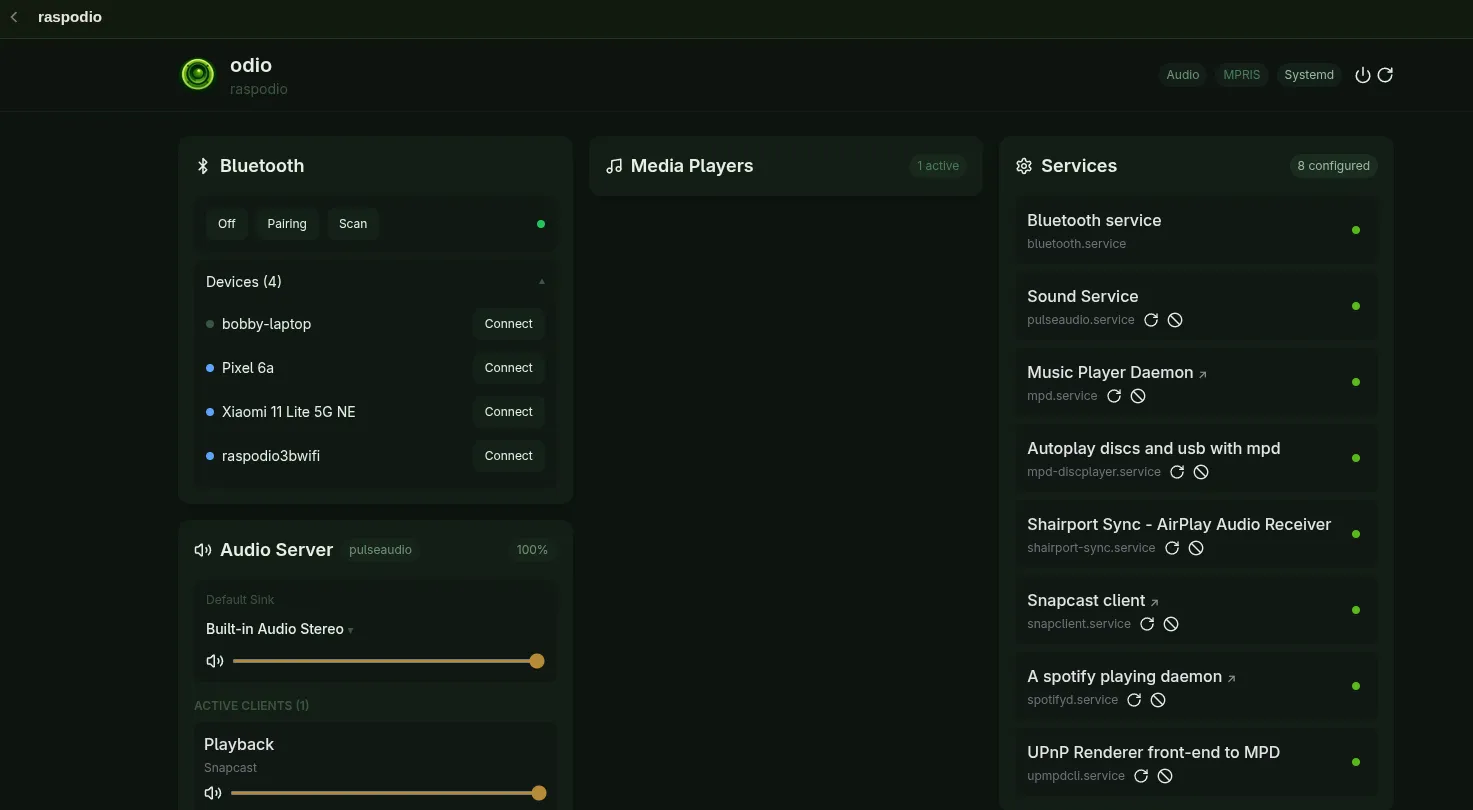
In the Bluetooth panel, click Scan. odio powers the adapter up if needed, discovers nearby audio devices, and streams them into the Devices list as they appear. A freshly seen device shows a grey dot.
-
When your speaker shows up, click Connect next to it. odio opens a pairing window for the connection, bonds with the speaker (no PIN needed while it’s in pairing mode), trusts it for future reconnections, and stops the scan. The button shows a spinner until the speaker reports connected, then its dot turns green.
The dot colors track pairing, not presence: a blue dot marks a device odio has already bonded with, so you can reconnect it later without redoing the pairing, whether or not it’s in range right now. A green dot means it’s connected at this moment.
Selecting the sink
Section titled “Selecting the sink”The connected speaker appears in Audio Server → Default Sink. Pick it, and every odio source now plays through it.
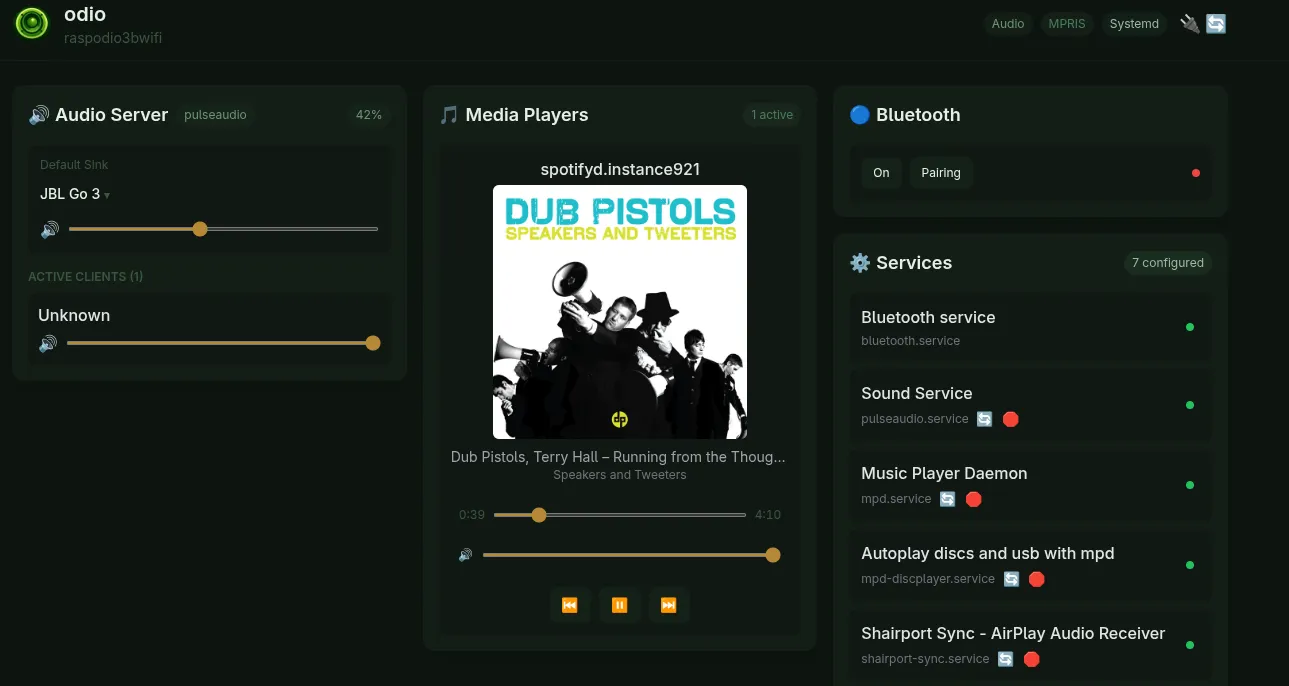
Volume sync works the same way as for a built-in DAC: moving the UI slider changes the speaker’s volume over AVRCP, and physical buttons on the speaker update the UI.
Reconnecting
Section titled “Reconnecting”Once bonded, BlueZ reconnects the speaker automatically when both sides are powered and in range, including after a reboot of the node. This usually just works, but auto-reconnect isn’t 100% reliable across every speaker and firmware. If the sink doesn’t come back on its own, open the Bluetooth panel and click Connect next to the speaker.
After a reflash
Section titled “After a reflash”A reflash wipes the node’s bonding state, so the speaker is no longer known. Put it back into pairing mode and reconnect from the embedded UI (Scan, then Connect).
Pairing from the command line (fallback)
Pairing can also be done over SSH with bluetoothctl, handy on a headless node or when the UI flow won’t bond a stubborn speaker.
Put the speaker in pairing mode, SSH into the node, and open an interactive session:
bluetoothctlPower the adapter and scan until the speaker appears in the output:
power onscan on[NEW] Device 40:C1:F6:D4:67:88 JBL Go 3Then stop the scan, make the adapter pairable, connect, and trust the device for future reconnections:
scan offpairable onconnect 40:C1:F6:D4:67:88trust 40:C1:F6:D4:67:88exitReplace the MAC with yours. pairable on lets the adapter accept a new bond; with the speaker in pairing mode, connect then pairs and bonds with no PIN needed, and trust lets the node reconnect it without manual confirmation after a reboot.
See also
Section titled “See also”- Bluetooth for the opposite direction, using the odio node as an A2DP speaker that your phone streams to.