
How to stream Qobuz Connect to your odio Pi
Your odio node can appear as a Qobuz Connect device in the official Qobuz apps, via qbzd, the headless daemon of the QBZ player, packaged for odio by odio-qbz. Requires a Qobuz subscription.
Enable it
Section titled “Enable it”From the settings page, enable Qobuz Connect in the Streaming group, then apply an upgrade: that run installs it. On a fresh install, the installer asks the same question.
Sign in
Section titled “Sign in”Signing in is a button on the same page: Log in to Qobuz on the Qobuz Connect row shows a link, valid for five minutes. Open it from a browser on the same network as the node, the sign-in redirects back to the node to finish. There is no other supported login path.
- Open Qobuz on your phone, tablet, or desktop.
- Open the device picker.
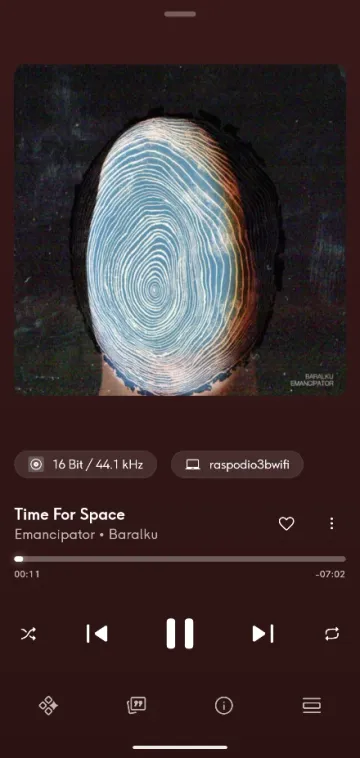
- Select your odio node, it carries the node’s hostname.
Music streams from Qobuz to the Pi, and the app acts as a remote. Audio goes through PulseAudio like every other source, so the node’s volume and output routing apply.
Playback controls
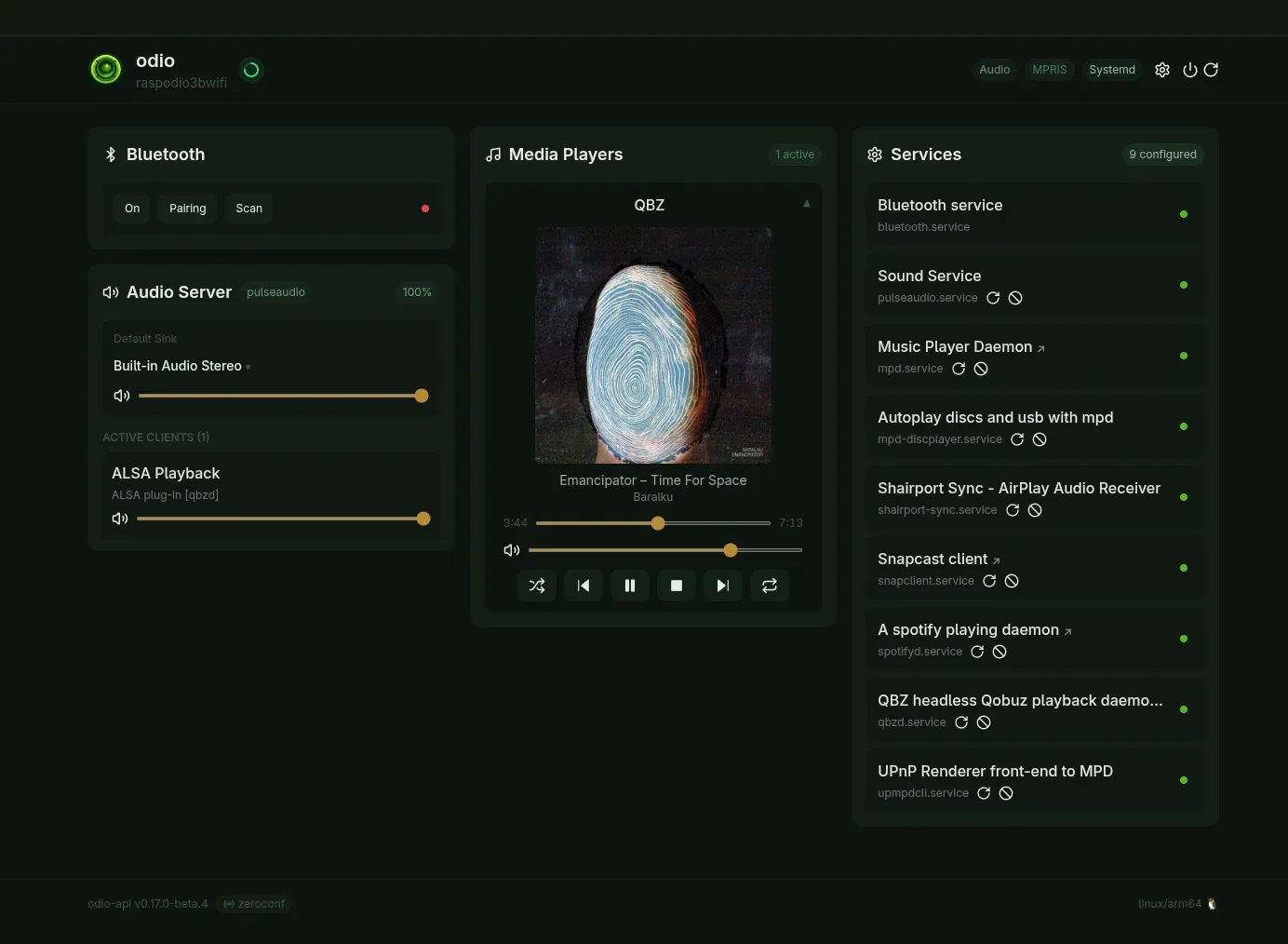
Section titled “Playback controls”The Qobuz session appears as an MPRIS player in the embedded web UI, the application and Home Assistant with transport controls.
For Qobuz in the node’s UPnP library instead, through upmpdcli’s plugin, see Tidal & Qobuz.