
odio-ha options and entity mapping
Open Settings → Devices & services → Odio Remote and select Configure to change the options of a node. The menu offers two pages: SSE settings and Entity mappings.
SSE keepalive
Section titled “SSE keepalive”How often the node sends a keepalive on the event stream, in seconds, from 10 to 120. The default, 30 seconds, suits most networks.
odio-ha considers the connection lost when nothing arrives for the interval plus 15 seconds, then reconnects. A shorter interval detects a dead node sooner, a longer one sends less traffic.
Entity mapping
Section titled “Entity mapping”odio-ha doesn’t replace existing Home Assistant integrations. MPD, Snapcast, spotifyd and upmpdcli all have their own dedicated integrations for rich playback control.
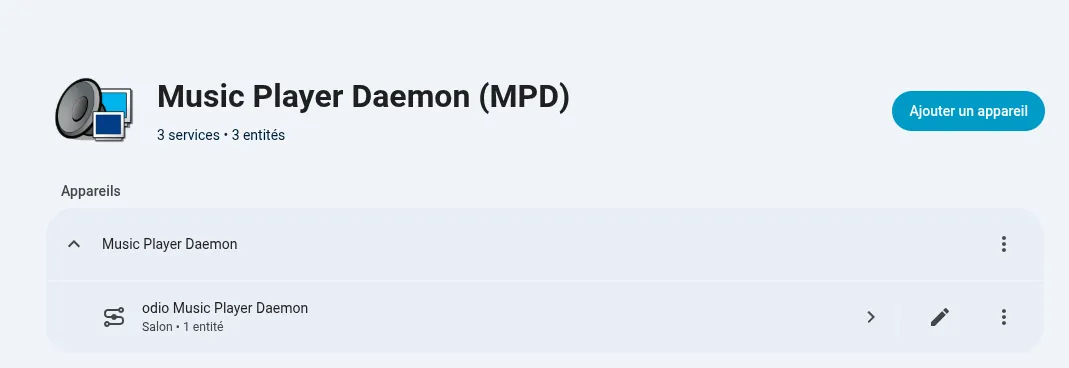
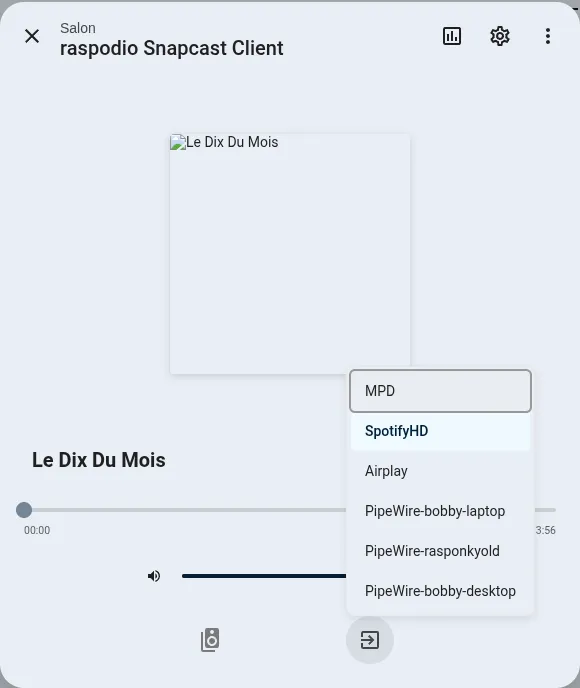
A mapping links an odio entity to one of these media players so Home Assistant treats them as one. Three kinds of odio entities can be mapped:
- Services, such as
mpd.servicemapped tomedia_player.music_player_daemon. A mapped service gets its own media player. - Remote audio clients, such as a PipeWire tunnel from an HTPC mapped to
media_player.kodi_htpc. - MPRIS players, to fall back on another media player’s controls.
A mapped entity combines:
- Start and stop through systemd, for services.
- Volume and mute through PulseAudio or PipeWire, for the whole node or for one client.
- Everything the mapped media player offers: transport, seek, shuffle, repeat, source, metadata, album art, position.
Without a mapping, a service or client entity only offers volume, mute, and a playing or idle state.
Services can be mapped during the initial setup. Services, remote clients and MPRIS players can all be mapped later from Configure → Entity mappings. Check Delete next to a mapping to remove it.
Changing the API URL
Section titled “Changing the API URL”If the node’s address or port changes, open Settings → Devices & services → Odio Remote, and select Reconfigure from the node’s menu to enter the new API URL. The node keeps its entities and settings.